Troubleshoot PDF Upload, Analysis, and Export
Atualizado em 9 de set. de 2026
If a PDF task stops, first identify whether it is at upload, analysis, editing, or export. Follow the steps below for the message shown on screen.
Upload fails or a file-size message appears
The PDF file-size limit is 50 MiB (52,428,800 bytes, displayed as 50MB). If your file is larger, reduce it or split it in its source application or a PDF tool before uploading again.
If you see Too many pages, split the original document to fit the limit shown in the message. A small file can still exceed the page limit. Upload each part and check each output separately.
Split files in the source application or a separate PDF tool. For an empty file or invalid PDF, save it again from the source application. If a plan notice appears during multi-file upload, try one file first and review the conditions.
The document cannot be opened
If an upload fails, click View error for that file in the upload status panel at the bottom of the screen. If it says Unable to open the file. (it may be encrypted or corrupted), first check whether the original opens in a PDF viewer on your device.
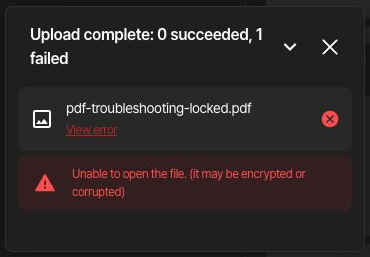
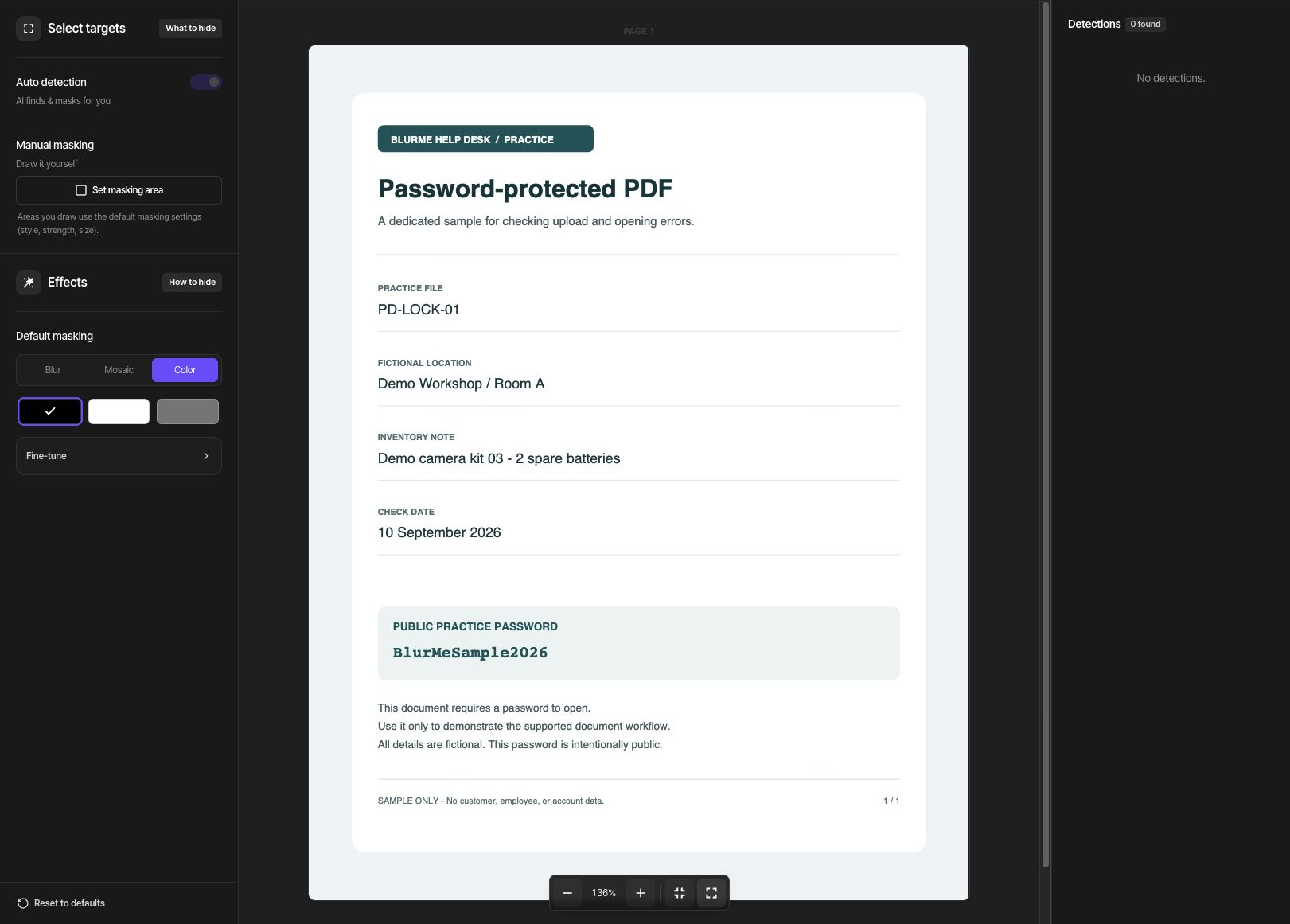
pdf-troubleshooting-locked.pdf is a fictional practice file that requires an opening password. Its intentionally public practice password is BlurMeSample2026. pdf-troubleshooting-unlocked.pdf contains the same document with only its password removed.
- Open the original document you are authorized to access in a PDF application on your device and enter its password.
- Use that application or the document's source application to save a new PDF without password protection. The location of the save and security settings depends on the application.
- Reopen the new file and confirm that it opens without a password, then upload it from the dashboard. Use a distinct file name so you do not select the protected original again.
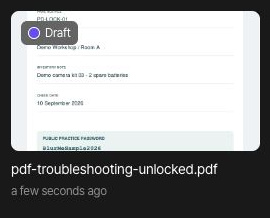
When the new file appears in the list, open its project and check that the page loads normally. The unlocked example keeps the same document content; only the opening password was removed.
If the document opens normally but shows 0 detections, as in this example, that is different from an upload error. Use Set masking area to cover anything that needs manual masking.
If the original will not open even with the correct password, save it again from its source application or obtain another copy. A scanned document is not necessarily corrupted. For an image-based PDF, follow the scanned-PDF guide.
Analysis is in progress or detection fails
While the project shows Analyzing, export is unavailable until analysis finishes. Wait briefly, then check the same project again.
If a message says personal-information detection failed, confirm that the original opens normally and try again. If the failure repeats, record the exact message and failed stage when contacting support.
Zero detections is different from an error message. Inspect the pages and use Set masking area to cover the required information. Items whose location could not be found also need a manual area; checking an item alone cannot cover them.
The Export button is unavailable
Confirm that analysis is complete and at least one detection or enabled manual area is selected for masking. If all detections are excluded and all manual areas are disabled, there is nothing to export.
Turning off a detection type excludes it from export. Include the required items again or enable a manual area. If a credit, sign-in, or plan notice appears, review it before retrying.
Export fails or the result cannot be loaded
Reopen the same project, check its masking settings and save status, and run Export again. If the failure repeats, include the exact error, page count, file size, browser, and time of failure in your support request.
Even when the result page opens, inspect all pages and reopen the downloaded file separately. If the download does not start, check the browser download list and any blocked-download notice, then use Download on the result page again.
The downloaded file contains older edits or hidden information
Editing a project and generating an output are separate steps. After making changes in Edit, export again. Use the file name and download time to identify the new output.
If covered text remains searchable, copyable, or present in extracted text, check that you used Default masking → Color and covered every character. Do not treat Blur or Mosaic as equivalent to text removal.
A scanned PDF can still have visible text in its image even when search finds nothing. Zoom in and check the actual image on every page. If a corrected export still has the problem, contact support before sharing it.
When a required type is not detected automatically
Phone/account-number pattern detection and OCR are available including on Free. Automatic name/address detection is available on Starter and above; processing faces and plates in PDF photos is available on Pro and above. Check your current plan and the notice shown on screen.
Access to a feature does not mean that every item in the document will be detected. Compare the result with the source and cover missing information manually.