Try BlurMe as a Guest and Get Started with an Account
อัปเดตเมื่อ 9 ก.ย. 2569
What you will complete
Understand guest use and account work, then start projects you want to keep while signed in.
1. Try a file before signing up
Open a product upload page while signed out and try editing one file. Follow any sign-in or upgrade notice for the operation you choose. Do not assume guest access includes every paid feature.
2. Keep your trial files
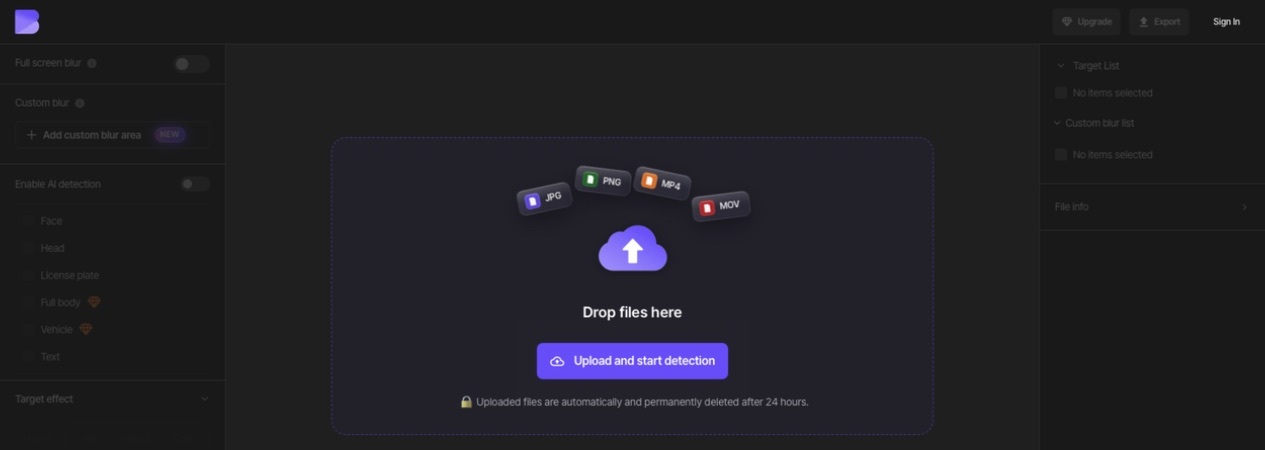
Guest uploads are temporary. The guest interface says uploaded files are automatically deleted after 24 hours. Keep originals and downloaded results on your device. Creating an account does not mean an earlier guest project has automatically moved into it.
3. Start with an account
Sign up with email or Google, then use that same method to sign in. Upload the original from your dashboard and check that the project appears in the correct account. Reopen it to check that your edits are retained.
4. Check Free access
New accounts start on Free. The current Free plan uses no credits, adds a watermark to exports, and limits video exports to 10 seconds and 1080p. Check the pricing page and operation screen for the plan required by Magic Blur, background effects, batch uploads, and other features.
Continue your task
Organize projects in folders or follow a studio task guide. If you need a paid plan, compare features, upload limits, and credits together.
Check current plans and limits