Hide Text and Personal Information in a Photo
อัปเดตเมื่อ 9 ก.ย. 2569
Hide names, phone numbers, and addresses in a photo or screenshot while keeping the remaining content visible. Cover missed fields manually and save the edited image.
Before you start
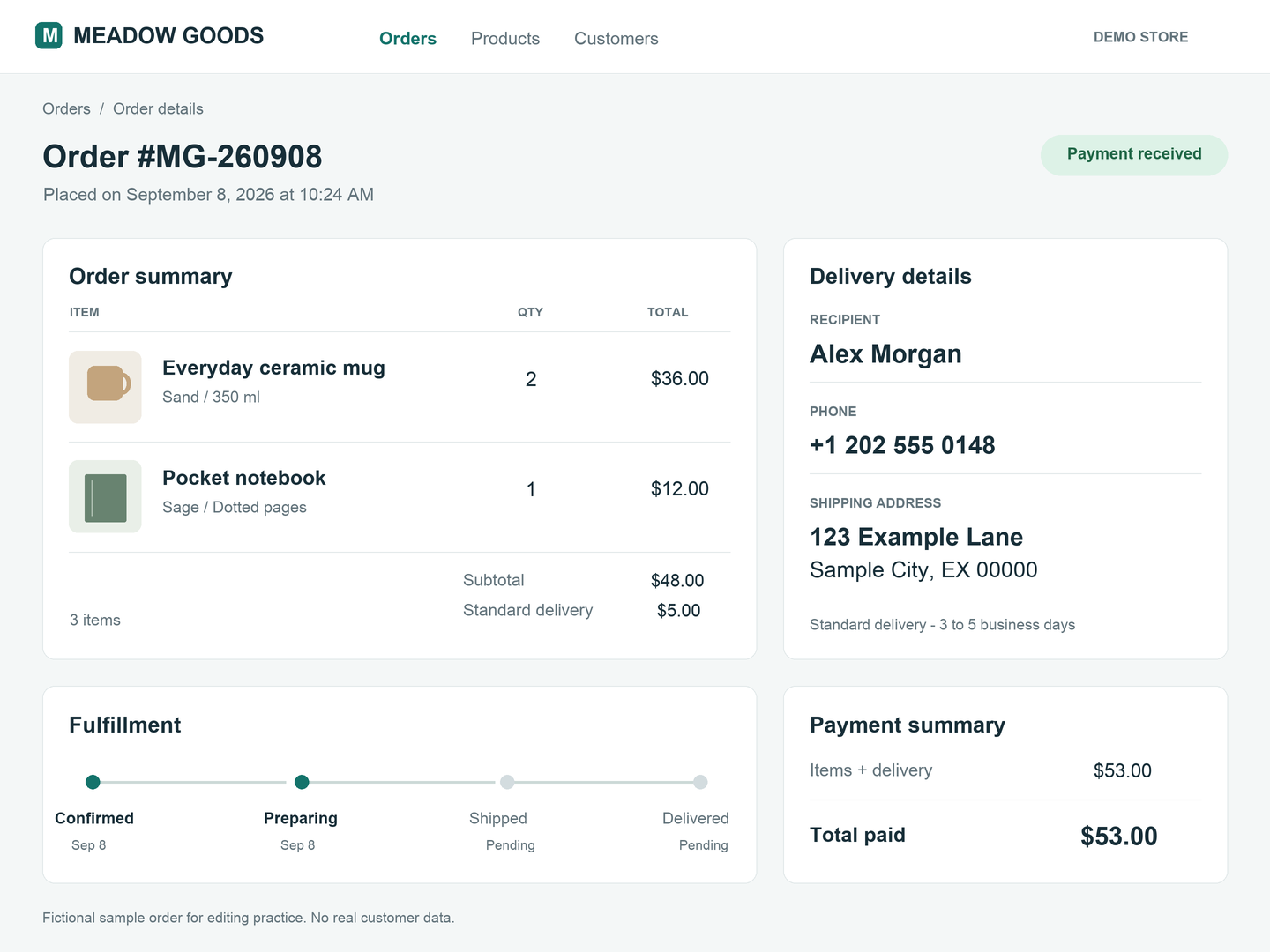
Use the fictional order-details PNG, which includes a recipient and contact details. Download it below or use your own photo or screenshot containing information to hide.
Free exports do not use credits and include a watermark.
1. Identify what to hide
In the dashboard, choose Upload files and select order-details.png. After upload and analysis finish, open that photo in the Studio.
In the right-hand Delivery details card, hide Alex Morgan, the phone number, and both address lines. Keep the product list and order status visible.
2. Review text detection
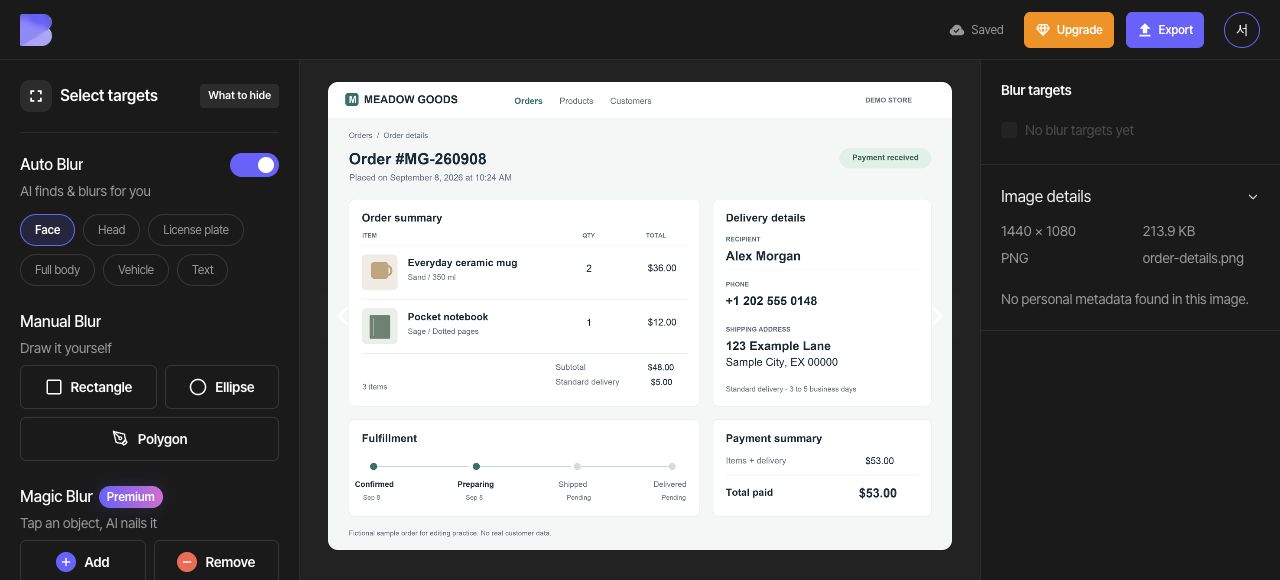
Enable Text under Auto Blur and compare the results with the original. This order-details PNG produces zero targets, so the recipient, phone number, and address remain visible. Turn Text detection off and add manual areas in the next step.
When another photo produces detections, still check them against what you intend to share. Confirm that every field to hide is included and that product information you want to keep has not been included by mistake.
3. Cover any missed fields manually
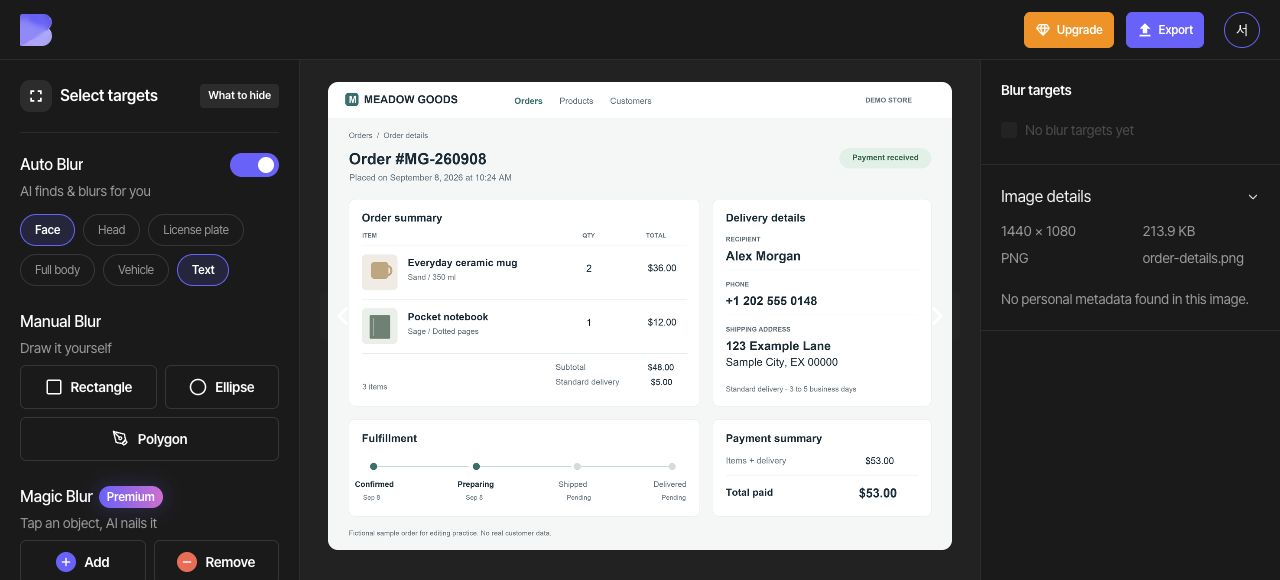
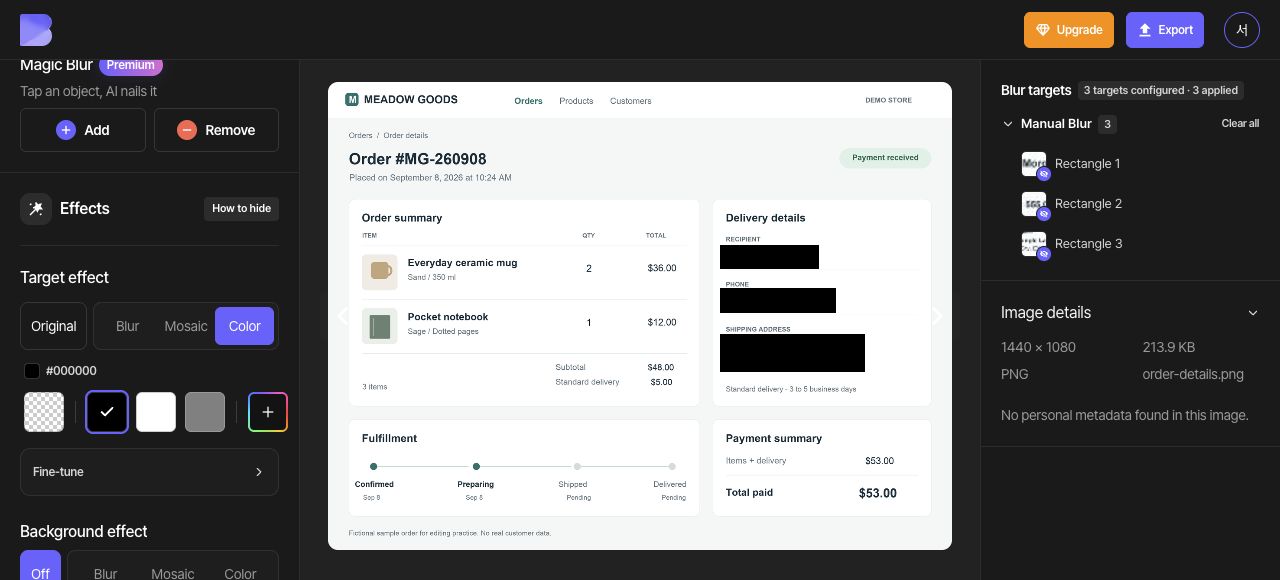
Turn Text detection off and create three manual Rectangles. Cover the recipient name with the first, the complete phone number including +1 with the second, and both shipping-address lines with the third. Use the resize handles to keep every character inside its area.
4. Make all three areas black and review
Use Clear selection to deselect the individual area. In the overall Target effect controls, choose Color and then the black swatch (#000000).
Zoom in to confirm that the recipient, the entire phone number including its country code, and both address lines are covered in black. Check that the product names, quantities, prices, and order status remain readable.
5. Export as PNG
Open Export at the top and select PNG. Set the file name to order-details-edited. Confirm the format and name, then review the on-screen credit and usage notice before starting the export.
6. Check the downloaded file
After export completes, use Download for the same photo in the dashboard. Wait for the browser download to finish, then open the file on your device and check its name and extension.
Check that the recipient, full phone number including +1, and both address lines are covered while product names, quantities, prices, and order status remain readable. Perform this check in the file you just received as well as in the editor.