Hide License Plates in a Photo
9 Eyl 2026 tarihinde güncellendi
Detect a license plate, cover its entire area with black, and save the photo. Check both the editor and downloaded image for exposed plate edges.
Before you start
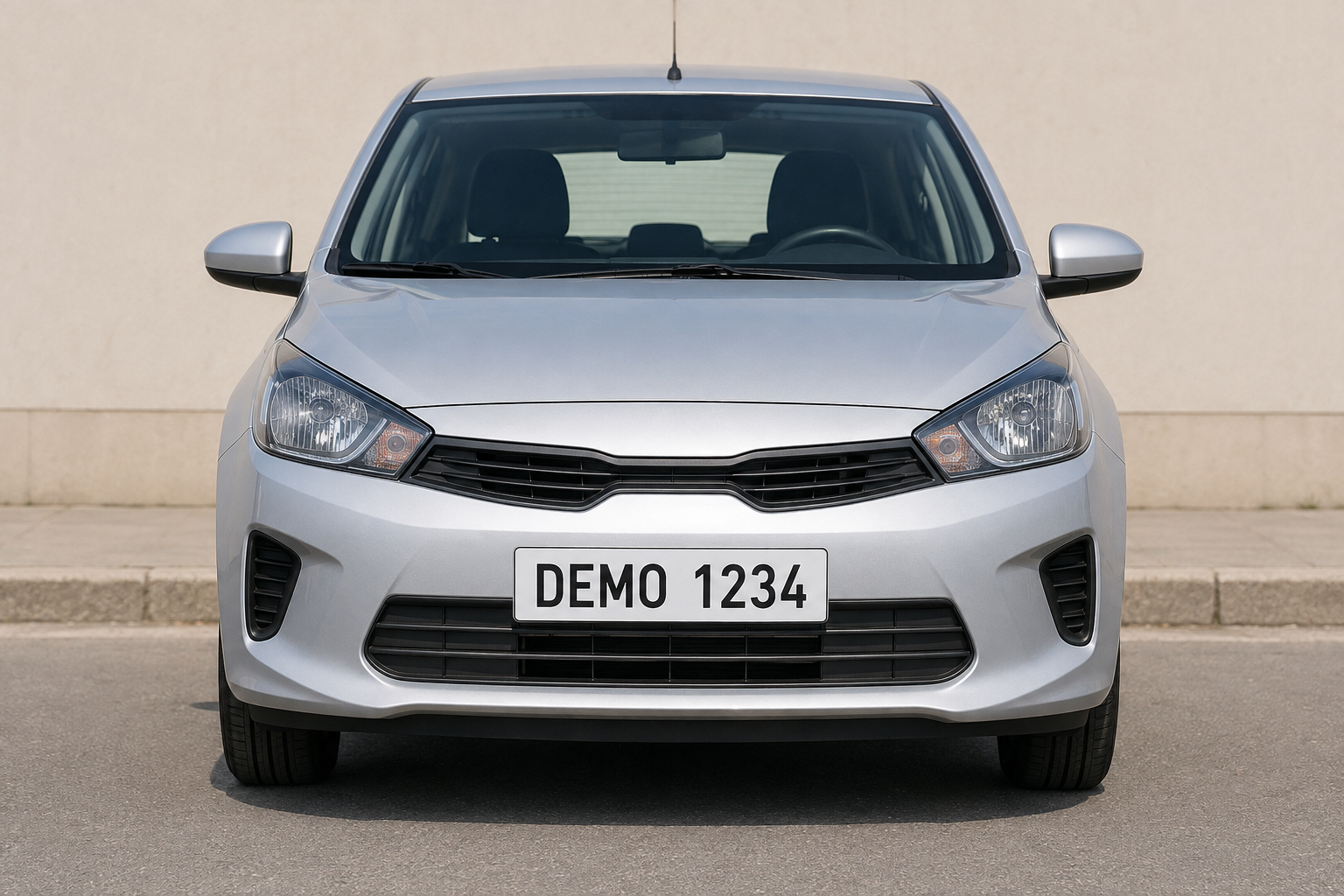
The sample vehicle has a fictional DEMO 1234 plate. Download it below or use your own vehicle photo.
Free exports do not use credits and include a watermark.
1. Locate the plate
In the dashboard, choose Upload files and select license-plate.png. After upload and analysis finish, open that photo in the Studio.
Locate the full outer edge of the plate. The covered region should include the whole plate, not only its digits.
2. Detect the license plate
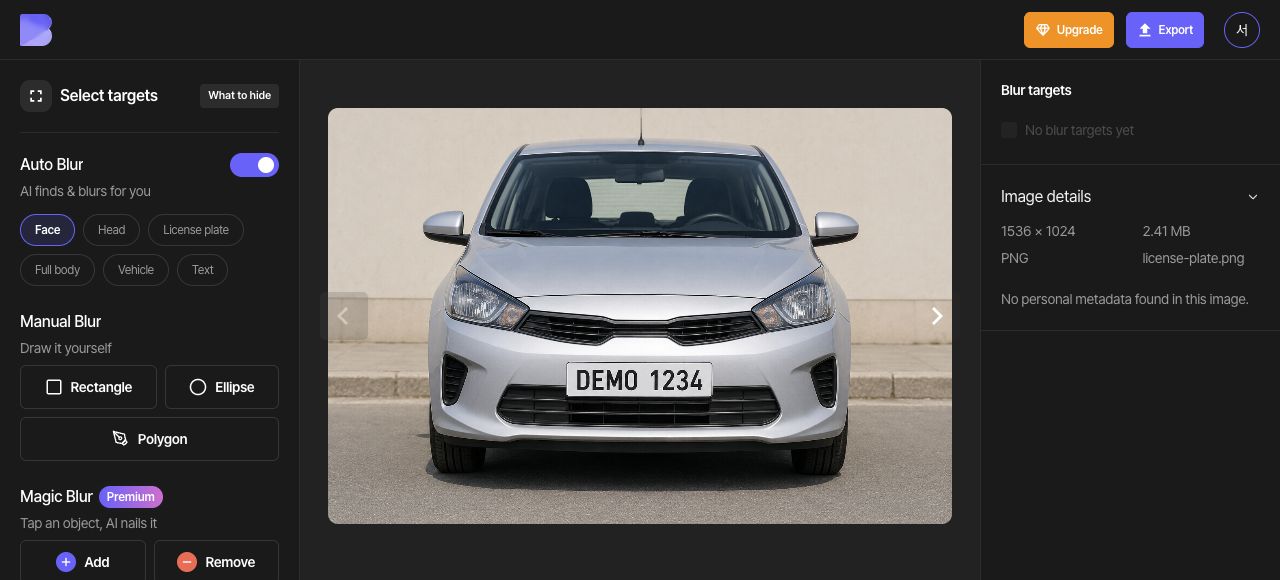
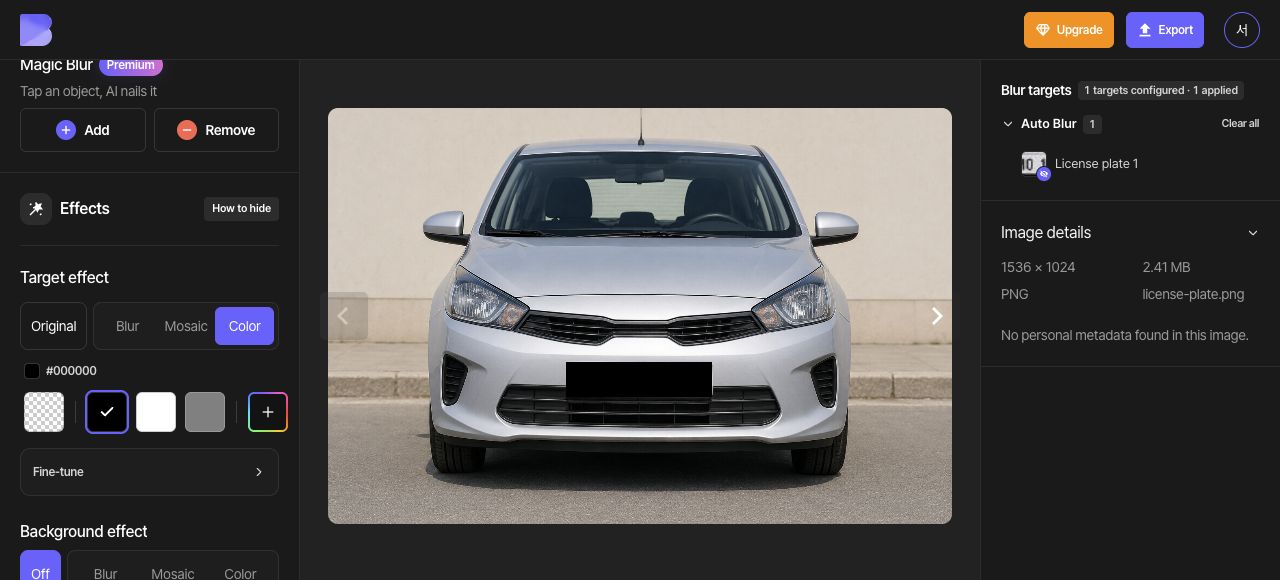
Enable the License plate button under Auto Blur. This sample produces one detected plate. Check that its area includes the entire plate.
Compare the detected area with the plate’s outer edge. If the plate is not detected, use a Rectangle under Manual Blur to cover the same area.
3. Cover the plate with black
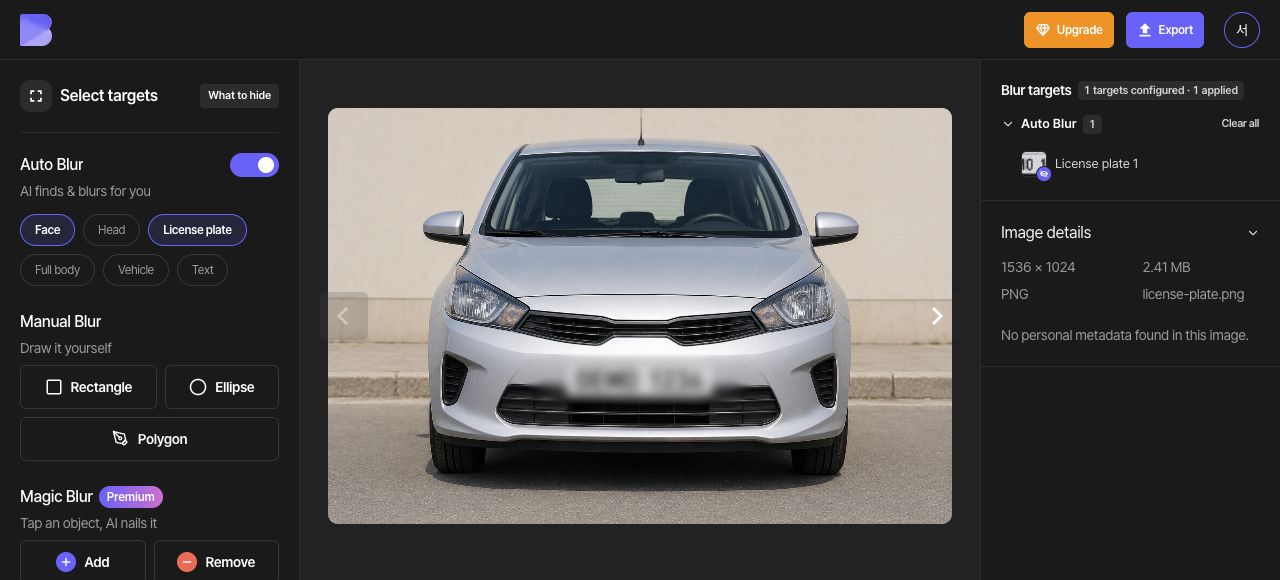
Choose Color in the overall Target effect controls, then select the black swatch (#000000). Check that the entire detected plate is covered in black.
4. Check the entire plate
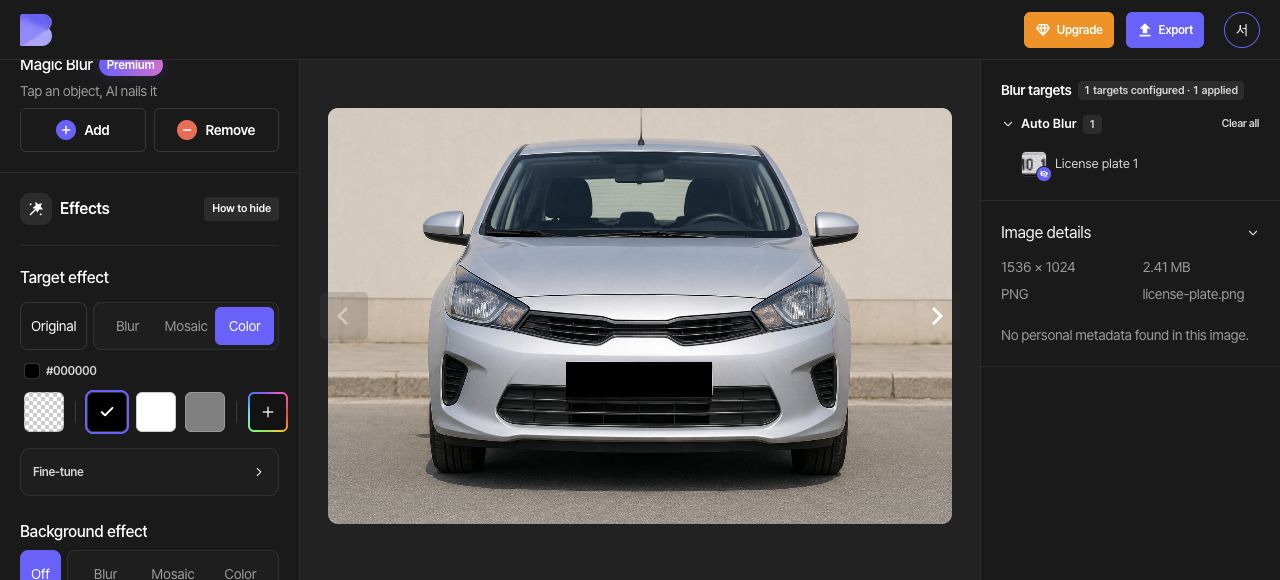
Zoom in and inspect the first and last characters and the plate edges. Correct the area if needed and confirm complete plate coverage in the editor.
5. Export as JPG
Open Export at the top and select JPG. Set the file name to license-plate-edited. Keep Quality at Default, then review the on-screen credit and usage notice before starting the export.
6. Check the downloaded file
After export completes, use Download for the same photo in the dashboard. Wait for the browser download to finish, then open the file on your device and check its name and extension.
Check that black covers the entire plate, from its first to last character and along its outer edge. Perform this check in the file you just received as well as in the editor.