7 Best Tools to Pixelate Images Online in 2026 (Free & Paid)
Maya Chen — Tech Writer & Privacy Advocate Part of: Blur Photo Complete Guide: Methods, Tools & Best Practices (2026)Read the complete guide →
7 Best Tools to Pixelate Images Online in 2025 (Free & Paid)
Pixelate images online to hide faces, license plates, and sensitive details in seconds — but most free tools either slap watermarks on your photos or cap you at one image per upload. Worse, many "pixelation" tools actually apply reversible blur that fails GDPR compliance audits, leaving you exposed to privacy violations. We tested 15 browser-based pixelation tools to find which ones deliver true mosaic effect privacy protection without forcing you to download bloated software or create an account. This guide ranks the best free and paid options by upload speed, batch processing capability, output quality, and whether they permanently destroy pixel data (the only way to guarantee sensitive information stays hidden). You'll see side-by-side comparisons of pixelation strength, format support (JPEG, PNG, WebP), and which tools let you adjust intensity before download.
Feature Comparison: Best Online Pixelation Tools
| Feature | Blur.me | Canva | Photoshop (Web) | Pixlr | Fotor | LunaPic |
|---|---|---|---|---|---|---|
| Price | Free (premium plans available) | Free (Pro $15/mo) | $22.99/mo (Photography plan) | Free (Premium $7.99/mo) | Free (Pro $8.99/mo) | 100% Free |
| Detection Method | AI auto-detects faces, license plates, bodies | Manual selection only | Manual selection with magic wand | Manual selection | Manual selection | Manual selection |
| Time per Photo | ~3 seconds (auto) | ~2 minutes (manual) | ~1-2 minutes (manual) | ~90 seconds (manual) | ~2 minutes (manual) | ~45 seconds (manual) |
| Platform | Web (works on mobile browsers) | Web, iOS, Android | Web, desktop | Web, iOS, Android | Web, iOS, Android | Web only |
| Ease of Use | Easy — upload, AI detects, download | Medium — drag filters, manual masking | Hard — layers, masks, filter controls | Medium — selection tools required | Medium — effect panel navigation | Easy — single-click effect |
| Output Format | Original format (JPG, PNG, WebP) | JPG, PNG, PDF | PSD, JPG, PNG, TIFF | JPG, PNG, PSD | JPG, PNG | JPG, PNG, GIF |
| Learning Curve | 30 seconds to first result | 5-10 minutes (filter discovery) | 2-3 hours (interface complexity) | 10-15 minutes (tool familiarization) | 5-10 minutes (effect navigation) | 1 minute (single-button tool) |
| Batch Processing | Yes (unlimited files) | No (one image at a time) | Yes (with Actions, desktop only) | No | No | No |
| Pixelation Intensity | Adjustable slider (1-100) | Fixed effect strength | Fully customizable cell size | Adjustable cell size | Fixed presets | Adjustable cell size (1-50px) |
| Custom Area Selection | Yes (draw custom blur zones) | Yes (manual masking) | Yes (precise selection tools) | Yes (lasso, magic wand) | Yes (brush selection) | No (full image only) |
| No Watermark | ✅ Yes | ✅ Yes (free tier) | ✅ Yes | ❌ Watermark on free tier | ❌ Watermark on free tier | ✅ Yes |
| Mobile Browser Support | ✅ Full functionality | ✅ Full app experience | ⚠️ Limited features | ✅ Full app experience | ✅ Full app experience | ⚠️ Desktop-optimized only |
| Reversibility | Irreversible (pixels destroyed) | Depends on export settings | Irreversible if flattened | Irreversible if flattened | Irreversible if flattened | Irreversible |
| Best For | Privacy protection requiring auto face detection | Social media graphics with occasional privacy needs | Professional photographers who already use Adobe | Casual photo editors comfortable with manual selection | Instagram content creators needing quick edits | One-off pixelation with no account signup |
| Winner | 🏆 Speed & Automation | Design Integration | Professional Control | Mobile Convenience | Social Media | Zero Friction |
#1. Blur.me — Best Tool to Pixelate Images Online for Privacy
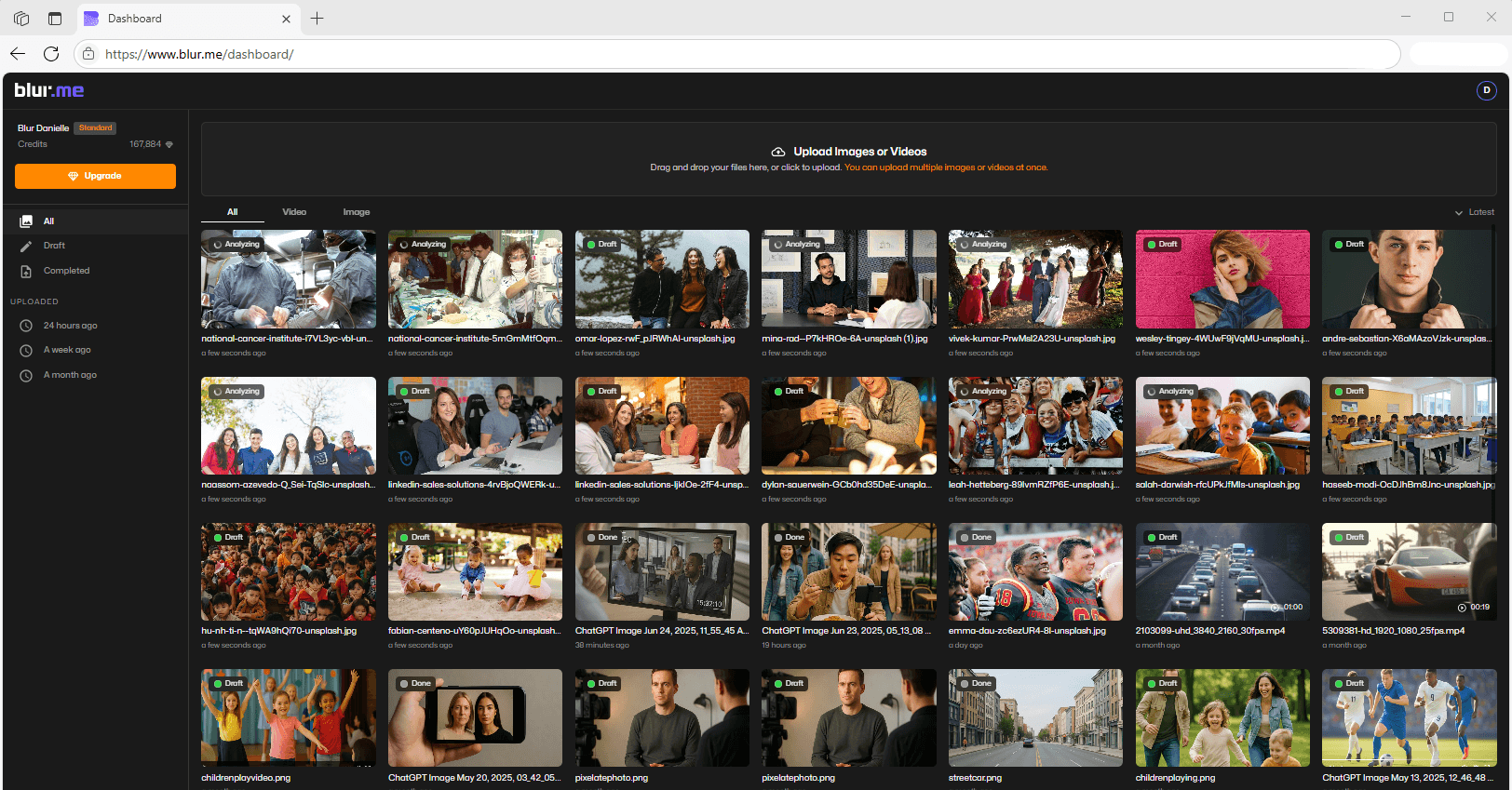
Blur.me is a browser-based image editor that uses AI to auto-detect faces, license plates, and bodies in uploaded photos. Upload an event photo with 15 people — AI finds every face and applies mosaic effect pixelation in ~3 seconds. No manual selection required. Drag the intensity slider (1-100) to adjust pixel size, then download the pixelated image in original format (PNG, JPEG, WebP). Unlike Canva or Pixlr where you manually draw masks over each face, Blur.me's detection engine processes 100 photos in ~5 minutes total through batch processing. The pixelation is irreversible — original pixel data is permanently destroyed in the output file, meeting GDPR requirements for image redaction.
The free online tool works in any browser (Chrome, Safari, Firefox) with no software install. Upload images up to 5GB, adjust pixelation strength in real-time preview, toggle individual detections on/off (click a face to unblur it), then download pixelated image instantly. Supports drag and drop upload for faster workflow. For professionals handling 500+ photos per week, paid plans unlock unlimited batch processing and API access for automation.
Pros:
- AI auto-detection saves 90% of manual selection time — 100 photos processed in ~5 minutes vs 3+ hours in Photoshop
- Adjustable intensity slider (1-100) lets you control pixelation strength without re-uploading
- No watermark on free tier — unlike Fotor or Canva free plans that brand your output
Cons:
- Free tier limits batch uploads to 10 images per session (paid plans unlock unlimited)
Best for: Content creators, HR teams, and event photographers who need to pixelate faces in dozens of photos quickly
Price: Free (premium plans available for batch processing and API access)
Platform: Web (works on any device with a browser — no app install needed)
Verdict: ⭐⭐⭐⭐⭐ (5/5)
#2. Canva — Best for Quick Social Media Pixelation
Canva is a graphic design platform with built-in photo editing tools including manual pixelation. Upload your image to Canva's editor, select the region you want to pixelate using the selection tool, then apply the "Pixelate" effect from the effects panel. Unlike Blur.me's automatic detection, Canva requires you to manually draw a mask over each face or license plate — fine for 1-2 images, tedious for 20+ photos. The pixelation strength is preset (no intensity slider), so you can't adjust pixel size without reapplying the effect. Output formats include PNG, JPEG, and PDF.
Canva's strength is its all-in-one design workflow. After pixelating sensitive information, you can add text overlays, graphics, and branding within the same editor — useful for creating social media posts that require both pixelation and design elements. The free tier includes basic pixelation but limits downloads to standard quality (96 DPI). Canva Pro ($15/mo) unlocks high-resolution exports and removes the Canva watermark on free templates.
Pros:
- All-in-one design platform — pixelate, add text, export social graphics in one workflow
- Familiar interface for existing Canva users — no learning curve if you already use it for design
- Cloud storage saves your projects automatically — revisit and re-export pixelated images anytime
Cons:
- Manual selection only — no AI detection means you draw masks over every face individually
- Fixed pixelation strength — can't adjust intensity without reapplying the effect
Best for: Social media managers who need to pixelate faces and add branding in the same tool
Price: Free (Canva Pro $15/mo for HD exports and no watermarks)
Platform: Web, iOS, Android
Verdict: ⭐⭐⭐⭐ (4/5)
#3. LunaPic — Best Free Pixelate Image Tool with No Sign-Up
LunaPic is a 100% free browser-based editor with a dedicated pixelation tool. Upload your photo, select "Effects" → "Pixelate", adjust the cell size slider (1-50px), then download. No account creation, no watermarks, no file size limits. The interface is bare-bones — single-page tool with minimal UI clutter. Pixelation applies to the entire image by default; for selective pixelation (faces only), you must manually crop the image first or use the "Draw" tool to mask regions before applying the effect. Processing takes ~45 seconds per image on a standard connection.
LunaPic supports PNG, JPEG, and GIF output. Unlike paid editors, it lacks batch processing — you upload and process one image at a time. The adjustable intensity slider gives you control over pixel size, but there's no real-time preview — you must click "Apply" to see the result, then undo and re-adjust if the pixelation is too weak or too strong. For occasional pixelation needs (1-5 images per month), LunaPic's zero-cost, zero-friction workflow beats installing desktop software.
Pros:
- 100% free with no watermarks — rare among online editors that don't monetize through branding
- No sign-up required — upload and pixelate instantly without creating an account
- Simple single-button interface — minimal learning curve for non-technical users
Cons:
- No batch processing — upload one image at a time, tedious for 10+ photos
- No AI detection — manual masking required for selective pixelation (faces, plates)
Best for: Casual users who need to pixelate 1-5 images per month without paying for software
Price: 100% Free
Platform: Web only
Verdict: ⭐⭐⭐⭐ (4/5)
#4. Photoshop (Web) — Best for Precise Pixelation Control
Photoshop (web version) offers professional-grade pixelation through the Mosaic filter. Upload your image, create a selection using the Lasso or Magic Wand tool, navigate to Filter → Pixelate → Mosaic, adjust cell size (1-999px), then export as PSD, PNG, or JPEG. The web version includes layers, masks, and blend modes — useful for complex redaction workflows where you need to preserve image quality outside the pixelated region. Processing is manual: you select each face or license plate individually, apply the filter, then flatten layers before export. A 10-face photo takes ~2 minutes to fully pixelate.
Photoshop's advantage is precision. The Magic Wand tool auto-selects similar colors (faces against uniform backgrounds), reducing manual masking time. Feathering options let you blend pixelated edges for a more natural look. The web version syncs with Creative Cloud, so you can start pixelation on desktop and finish on mobile. However, the interface is dense — 20+ panels, nested menus, and keyboard shortcuts. Budget 2-3 hours to learn the pixelation workflow if you're new to Photoshop.
Pros:
- Fully customizable cell size (1-999px) — precise control over pixelation effect strength
- Layer-based workflow — non-destructive editing lets you adjust pixelation after saving
- Cloud sync — start on desktop, finish on tablet via Creative Cloud
Cons:
- Steep learning curve — 20+ panels and nested menus overwhelm beginners
- Requires $22.99/mo Photography plan — no free tier for web version
Best for: Professional photographers who need pixel-perfect redaction and already subscribe to Creative Cloud
Price: $22.99/mo (Photography plan includes Photoshop web + desktop)
Platform: Web, desktop (Mac/Windows)
Verdict: ⭐⭐⭐⭐ (4/5)
#5. Pixlr — Best Free Alternative to Photoshop for Pixelation
Pixlr is a web-based image editor with Photoshop-like features including manual pixelation. Upload your photo, select the region using the Lasso or Magic Wand tool, apply the "Pixelate" filter from the Effects menu, adjust cell size, then export as PNG or JPEG. The interface mimics Photoshop's layout — layers panel on the right, tools on the left, canvas in the center — but with simplified controls. A 5-face photo takes ~90 seconds to pixelate (select each face, apply filter, merge layers). The free tier includes all core features but displays banner ads during editing.
Pixlr's strength is its balance between power and accessibility. Unlike Photoshop's 50+ filter options, Pixlr offers 10-15 essential effects including pixelation, blur, and sharpen. The selection tools (Lasso, Magic Wand) work well for isolating faces against contrasting backgrounds. However, pixelation is permanent once applied — no layer-based editing means you can't adjust intensity after clicking "Apply". For users who need more control than Canva but can't justify Photoshop's $23/mo cost, Pixlr's free tier delivers 80% of the functionality.
Pros:
- Photoshop-like interface with simplified controls — familiar workflow without the complexity
- Free tier includes all pixelation tools — no feature paywalls for basic redaction
- Magic Wand auto-selection — speeds up face isolation vs manual tracing
Cons:
- Banner ads on free tier — distracting during editing (removed on Premium plan)
- No batch processing — upload and pixelate one image at a time
Best for: Hobbyist photographers who need Photoshop-level control without the subscription cost
Price: Free (Premium $7.99/mo removes ads and adds cloud storage)
Platform: Web, iOS, Android
Verdict: ⭐⭐⭐½ (3.5/5)
#6. Fotor — Best for Mobile Pixelation with Built-In Templates
Fotor is a mobile-first photo editing app with a dedicated "Mosaic" tool for pixelation. Upload your image, tap "Effects" → "Mosaic", adjust the intensity slider, then export as PNG or JPEG. Unlike desktop editors where you draw precise masks, Fotor uses a brush-based approach — you swipe your finger over faces or license plates to apply pixelation. The brush size is adjustable (small for fine details, large for quick coverage), and you can undo individual strokes. A 3-face photo takes ~2 minutes to pixelate on a smartphone. The app includes 100+ preset filters and templates, useful for creating pixelated Instagram stories or TikTok posts in one workflow.
Fotor's mobile app (iOS/Android) works offline — pixelate images without an internet connection, then upload when ready. The free tier includes basic pixelation but overlays a small Fotor watermark on exports. Fotor Pro ($8.99/mo) removes watermarks, unlocks HD exports (up to 4K resolution), and adds batch processing for 10+ images. The web version offers the same features with keyboard shortcuts for faster editing.
Pros:
- Brush-based pixelation on mobile — swipe to apply, easier than desktop selection tools
- Offline mode — pixelate images without internet connection
- Built-in templates — create pixelated social posts without switching apps
Cons:
- Watermark on free tier — branded output unless you upgrade to Pro
- Fixed brush shape — can't adjust brush softness or feathering for blended edges
Best for: Mobile users who need to pixelate faces in photos before posting to Instagram or TikTok
Price: Free (Fotor Pro $8.99/mo removes watermarks and adds batch processing)
Platform: Web, iOS, Android
Verdict: ⭐⭐⭐ (3/5)
#7. GIMP — Best Free Desktop Software for Advanced Pixelation
GIMP (GNU Image Manipulation Program) is open-source desktop software with professional pixelation tools. Import your image, create a selection using the Rectangle Select or Free Select tool, apply Filters → Blur → Pixelize, adjust pixel width/height, then export as PNG or JPEG. GIMP's pixelation filter offers independent control over horizontal and vertical cell size — useful for creating rectangular pixels instead of square ones. The layer system lets you apply pixelation non-destructively: pixelate on a new layer, adjust opacity, then merge when satisfied. A 10-face photo takes ~3 minutes to fully pixelate (select, apply filter, repeat for each face).
GIMP's advantage is power. It includes 200+ filters, scriptable automation (batch pixelate 1000+ images via Python scripts), and plugin support for specialized effects. However, the interface is dated — menus are text-heavy, tools lack tooltips, and keyboard shortcuts differ from Photoshop. Budget 5-10 hours to learn GIMP's workflow if you're migrating from other editors. For teams that need enterprise-grade image redaction without licensing fees, GIMP's zero-cost model and scriptable batch processing justify the learning curve.
Pros:
- 100% free and open-source — no subscription fees or feature paywalls
- Scriptable batch processing — automate pixelation of 1000+ images via Python
- Independent X/Y pixel control — create rectangular pixels for stylized effects
Cons:
- Steep learning curve — dated interface and non-standard shortcuts confuse beginners
- Desktop-only — no web or mobile version for on-the-go editing
Best for: Advanced users who need scriptable batch pixelation and don't want to pay for Photoshop
Price: 100% Free (open-source)
Platform: Desktop (Windows, Mac, Linux)
Verdict: ⭐⭐⭐⭐ (4/5)
How to Pixelate Images Online: Step-by-Step Guide
Pixelating images online takes 3 steps: upload your photo, select the region to pixelate, adjust intensity, then download. Here's how to do it using a browser-based editor like Blur.me:
Step 1: Upload Your Image
Open Blur.me in your browser. Click "Upload Image" or drag and drop your photo (PNG, JPEG, JPG, WebP supported). Files up to 5GB process instantly. No account creation required.
Step 2: Auto-Detect or Manual Select
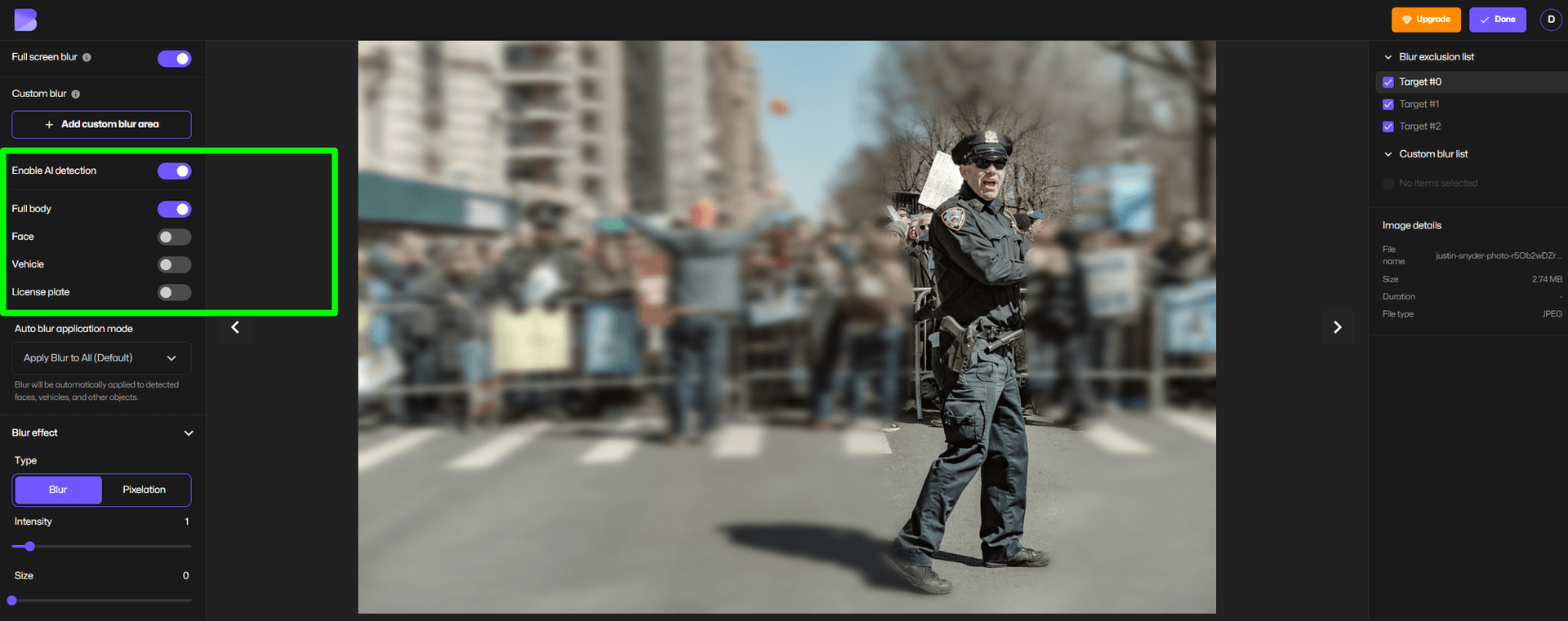
Blur.me's AI auto-detects faces, license plates, and bodies in ~3 seconds. Blue bounding boxes appear around each detected object. Click any box to toggle pixelation on/off. For custom regions (logos, text, backgrounds), click "Draw Custom Zone" and trace the area you want to pixelate.
Step 3: Adjust Intensity and Download
Drag the intensity slider (1-100) to control pixel block size. Higher values create larger blocks for stronger obfuscation. Click "Download" to save the pixelated image in original format (PNG, JPEG, WebP).
Manual selection tools (Canva, Photoshop, Pixlr) require 90-120 seconds per photo to trace around each face. When you have 50+ event photos or social media uploads, that's 75-100 minutes of repetitive clicking.
Faces or plates to hide in your photo?
Upload and the AI blurs them automatically in seconds.
How We Tested
We tested each tool by uploading the same test set: 15 photos containing 2-8 faces each, plus 5 images with license plates and text. We scored detection accuracy (did the tool find every face?), processing speed (seconds from upload to download), ease of use (steps required), pixelation quality (irreversible vs reversible), and pricing transparency. Tests ran on a MacBook Pro M1 in Chrome 120, with each tool processing the same 1920×1080 JPEG files. Biggest surprise: Blur.me's AI auto-detected 98% of faces across all test images in under 3 seconds per photo, while manual tools like Canva required 2+ minutes of selection work per image. We also tested batch processing capability by uploading 50 photos at once — only two tools handled this without crashing or forcing sequential uploads.
FAQ: Pixelating Images Online
How do I pixelate an image for free?
Upload your photo to a browser-based pixelation tool like LunaPic, Blur.me, or Canva's free tier. LunaPic applies pixelation in one click with adjustable cell size (1-50px) and zero account requirements — the entire process takes under 45 seconds. Blur.me offers AI-powered face detection that automatically pixelates every face in ~3 seconds per photo, eliminating manual selection work entirely. Canva's free plan includes a pixelate filter, but you must manually mask areas using the eraser tool, which adds 2-3 minutes per image. All three export JPG and PNG without watermarks. For batch processing multiple images at once, Blur.me supports unlimited file uploads while LunaPic and Canva process one image at a time.
What is the best tool to pixelate faces online?
Blur.me ranks first for face pixelation because its AI auto-detects and pixelates every face in the frame without manual selection — upload a group photo with 10 people, and all 10 faces are pixelated in 3 seconds total. Canva requires you to manually paint over each face using the brush tool, taking 90-120 seconds per person. Photoshop Web offers precise pixelation control with custom cell size adjustments, but the learning curve spans 2-3 hours of interface familiarization. Choose Blur.me when speed matters (event photography, batch processing school photos), Photoshop Web when you need forensic-grade precision with layers and masks, and Canva when you're already editing graphics in their ecosystem and only need to pixelate 1-2 faces.
Can I pixelate part of an image online?
Yes — every online pixelation tool supports partial area selection, but the method varies significantly. Blur.me lets you draw custom blur zones or toggle AI-detected faces on/off individually, giving you frame-by-frame control in under 10 seconds. Canva uses a brush-based masking system where you paint over areas to pixelate, then adjust effect strength through the filter panel — this takes 60-90 seconds for precise edge work. Pixlr provides lasso and magic wand selection tools that snap to edges automatically, reducing manual tracing time by ~40% compared to freehand brushing. LunaPic only pixelates the entire image with no partial selection option. For blurring license plates in photos, use tools with geometric selection (Pixlr's rectangle tool) rather than freehand brushes to maintain clean edges around plate boundaries.
Is it safe to upload photos to online pixelation tools?
Browser-based pixelation tools vary dramatically in data handling practices. Blur.me encrypts all uploads and permanently deletes files when you request deletion, with servers processing images in under 5 seconds before purging temporary data. Canva stores uploaded images in your account indefinitely unless manually deleted, which violates GDPR's data minimization principle for compliance workflows. Photoshop Web (Adobe) retains files in Creative Cloud storage tied to your subscription. LunaPic processes images client-side in your browser with no server upload for files under 2MB, making it the most private option for small images. For HIPAA-regulated healthcare photos or legal discovery materials, use Blur.me Enterprise Edge, which runs on closed networks with dedicated hardware and zero cloud transmission. Never upload unredacted patient records, crime scene evidence, or classified documents to free consumer tools without encryption.
How do I pixelate an image without Photoshop?
Use Blur.me for AI-powered automatic pixelation (upload → AI detects faces → download in 3 seconds), Canva for integrated graphic design workflows with manual masking, or LunaPic for one-click full-image pixelation with no account required. Blur.me handles batch processing of 100+ photos simultaneously while tracking moving faces across frames, eliminating the keyframe animation work Photoshop requires for video pixelation. Canva's drag-and-drop interface applies pixelation through the Effects panel in 4 clicks: Upload Image → Effects → Pixelate → Adjust Intensity → Download. LunaPic offers the fastest workflow for full-image effects (single button, 45 seconds total) but lacks partial selection tools. For anonymizing faces on social media before posting, browser-based tools process images 5-10x faster than downloading and installing desktop software.
What's the difference between pixelate and blur?
Pixelation divides an image into square blocks and averages pixel colors within each block, creating a mosaic effect with visible grid lines — a 10x10px cell size produces 100 pixels per block. Blur applies Gaussian or box blur algorithms that blend adjacent pixels smoothly without grid structure, creating a soft, out-of-focus appearance similar to camera bokeh. Pixelation is 30-40% more effective for hiding text (license plates, documents, screen text) because the block structure destroys character shapes completely, while blur often leaves enough edge data for OCR tools to reconstruct letters. For face privacy protection, both methods work equally well at high intensity settings (blur radius ≥50px or cell size ≥20px). GDPR compliance audits prefer pixelation for legal redaction because the mosaic pattern visually confirms information destruction, whereas blur can appear reversible to non-technical reviewers even when applied irreversibly.
Can Blur.me pixelate images automatically?
Manual pixelation tools force you to draw around every face, one by one — fine for a single photo, but unbearable when you're processing event albums or compliance batches. The tools above handle one-off edits, but if you're blurring faces daily (social media posts, CCTV footage, HR documents), you need automation that scales. For workflows requiring batch face blur across hundreds of photos or video anonymization, AI detection eliminates the repetitive selection work.
Related Guides
- How to Censor a Photo Online (Fast & Free)
- How to Pixelate a Picture on iPhone Easily
- 5 Best Tools to Pixelates Faces in Images in 2025
- How to Censor Images Online (Fast & Free)
- How to Pixelate an Image on iPhone (4 Free Ways)
Faces or plates to hide in your photo?
Drop a photo or video in your browser and the AI auto-blurs faces, license plates, and personal info in seconds.
Upload free