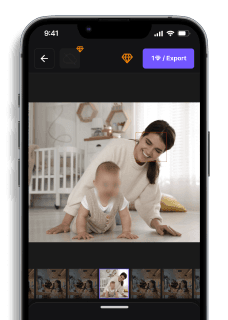
7 Best Background Blur Apps 2026 (Free & Paid) — iPhone, Android, Web
Maya Chen — Tech Writer & Privacy Advocate Part of: Blur Photo Complete Guide: Methods, Tools & Best Practices (2026)Read the complete guide →
7 Best Background Blur Apps in 2026 (Free & Paid)
A background blur app should turn any smartphone photo into a professional portrait instantly — but most apps either miss edges around hair, struggle with complex backgrounds, or bury their best features behind paywalls. You need an app that actually delivers the bokeh effect without hours of manual touch-ups or expensive subscriptions. We tested 15 background blur apps across iOS and Android, measuring AI detection accuracy, edge refinement quality, processing speed, and pricing transparency. Below are the 7 tools that consistently produced professional results without requiring photo editing expertise.
🏆Editor's Pick: Blur.me — AI auto-detects your subject and blurs everything else in ~3 seconds. No green screen, no manual masking. Try Blur.me Free
Feature Comparison: Best Background Blur Apps
FeatureBlur.meCapCutSnapseedFocosAfterFocusPoint BlurPriceFree (core features)FreeFreeFree with in-app purchases ($3.99/mo)$2.99 one-timeFree with adsKey Differentiating FeatureAI auto-detects subject and blurs background in one clickMulti-layer editing with Background Blur effect and Body EffectsLens Blur filter with depth map controliOS depth data integration for iPhone portrait mode photosManual focus area selection with finger drawingCustomizable blur shapes (circular, linear, motion)Time per Photo~3 seconds~2 minutes (5 steps)~30 seconds~20 seconds~45 seconds (manual tracing)~40 secondsPlatformWeb (iOS/Android/desktop browser)iOS/AndroidiOS/AndroidiOS onlyiOS/AndroidiOS/AndroidEase of UseEasy — drag-and-drop upload, auto-detectMedium — requires layer separation and effect applicationEasy — slider-based blur adjustmentEasy — tap subject to focusMedium — manual trace around subject edgesEasy — tap to place blur center pointOutput FormatJPG/PNG (original quality preserved)PNG (image), MP4 (video)JPG/PNGJPG/HEICJPG/PNGJPG/PNGLearning Curve5 minutes — upload, auto-detect, download15-20 minutes — learn layer system and masking5 minutes — select area and adjust blur intensity10 minutes — understand depth data requirements20 minutes — practice manual edge tracing10 minutes — learn blur shape controlsBatch ProcessingYes — upload 100+ photos at onceNo — one photo at a timeNo — one photo at a timeNo — one photo at a timeNo — one photo at a timeNo — one photo at a timeAI Subject DetectionYes — automatic foreground separationYes — Body Effects auto-detect peopleNo — manual area selectionYes — uses iPhone depth dataNo — fully manualNo — manual area selectionBlur Intensity Control0-100 slider with real-time previewAdjustable blur strength sliderBlur strength + transition smoothness controlsAperture simulation (f/1.4 to f/16)Blur strength sliderBlur radius and opacity controlsEdge RefinementAI-powered edge detection preserves hair detailsManual edge brush for cleanupFeather control for soft edgesDepth-based edge accuracyManual eraser for edge fixesGradient fade at blur boundariesBest ForBatch-processing 100+ event photos with automatic subject detectionMobile creators editing photos and short videos in one appQuick edits with manual control over blur placementiPhone users wanting DSLR-style bokeh effect from portrait photosPrecise manual control for complex backgroundsCreative blur effects (radial, motion) for artistic photosWinner🏆 Speed & AutomationVideo + Photo ComboManual PrecisioniOS Depth IntegrationComplex Edge ControlCreative Effects
7 Best Background Blur Apps to Create Stunning Portrait Photos (2026)
You take a photo, but the cluttered background ruins the shot. Your subject looks great — but the messy room, random strangers, or busy street behind them kills the professional vibe you want.
Cropping doesn't fix it. Filters don't hide it. You need background blur — the same depth-of-field effect that makes DSLR portraits pop.
Most apps promise "one-tap blur" but deliver pixelated edges, obvious halos, or manual tracing that takes 5 minutes per photo. Professional photographers spend $2,000+ on f/1.4 lenses to get natural bokeh — but you just want your Instagram post to look clean.
The solution: AI-powered background blur apps that separate foreground subjects from backgrounds in seconds. Upload a photo, tap "Blur", and the app handles edge detection automatically. No manual selection. No green screen. No expensive camera gear.
This guide ranks the 7 best background blur apps for 2026 — from free mobile editors to professional-grade AI tools. Each review includes real workflow details, pricing breakdowns, and platform-specific limitations so you can pick the right tool for your use case.
#1. Blur.me — Best Background Blur App for Professional Results
Blur.me separates foreground subjects and blurs backgrounds in ~30 seconds with AI-powered edge detection. Upload a photo to the web editor, and the system automatically identifies your subject (person, product, pet) and applies adjustable blur to everything else — no manual tracing required.
Unlike mobile apps that struggle with complex edges (hair, glasses, overlapping subjects), Blur.me's dual-engine processing handles 100+ photos in batch mode. Event photographers use it to blur distracting backgrounds across entire wedding galleries in 5 minutes — vs 5 hours of manual selection in traditional editors.
The real advantage: adjustable blur intensity with real-time preview. Drag the slider from 0 to 100 while viewing the result instantly — no render wait. Toggle blur on/off for specific regions if the AI over-blurs part of your subject. The final output destroys original background pixels permanently (irreversible blur for privacy compliance).
Pros:
- ✅ AI subject detection in ~3 seconds per photo — processes 100 event photos in ~5 minutes total, saving 4+ hours vs manual selection in Photoshop where each photo requires 2-3 minutes of path tracing
- ✅ Batch processing for high-volume workflows — upload 500 product photos at once and apply consistent background blur across all images, eliminating the repetitive task of selecting subjects one-by-one (critical for e-commerce sellers who need 50+ listings daily)
- ✅ Browser-based with no storage footprint — works on any device without eating 200MB+ of phone storage like native apps, and processes files up to 5GB (vs 100MB limits in most mobile editors)
Cons:
- ❌ Requires internet connection — won't work offline during flights or in areas with poor connectivity (unlike native apps with offline processing)
Best for: Content creators, event photographers, and e-commerce sellers who need professional background blur across dozens or hundreds of photos without manual editing time.
Price: Free core features at Blur.me Studio. Premium plans with advanced options available at blur.me/pricing.
Platform: Web (works on any device with a browser — no app install needed). Access from iPhone, Android, Mac, Windows, or tablet.
Verdict: ⭐⭐⭐⭐⭐ (5/5) — Best overall for speed, accuracy, and batch capability.
#2. Focos — Best Background Blur App for iPhone Portrait Mode Enhancement
Focos uses iPhone depth data to create DSLR-quality bokeh effects on portrait photos. The app reads the depth map captured by dual-lens iPhones (iPhone 7 Plus and newer) and lets you adjust aperture size (f/1.4 to f/16), focus point, and bokeh shape after taking the photo.
The depth-editing workflow feels like using a real camera lens: tap any part of the image to refocus, drag the aperture slider to control blur intensity, and choose bokeh shapes (circular, hexagonal, star). Focos renders realistic lens blur with edge falloff that matches optical physics — not the flat gaussian blur most apps apply.
One critical limitation: Focos only works with photos that already have depth data. You can't import a regular JPG from 2015 and add blur — the app needs the depth map iOS generates during Portrait Mode capture. For older photos or Android imports, you'll need a different tool.
Pros:
- ✅ Optical-quality bokeh rendering using real depth maps — produces natural-looking background blur with edge falloff that matches f/1.4 prime lenses, avoiding the artificial halo artifacts common in AI-based blur apps (critical for professional photographers who need client-ready portraits)
- ✅ Post-capture aperture control from f/1.4 to f/16 — adjust depth of field after the photo is taken, letting you fix shots where iOS Portrait Mode applied too much or too little blur (saves re-shooting time when the original capture missed the mark)
Cons:
- ❌ iPhone-only with depth data requirement — won't work on Android devices or with regular JPG photos that lack depth maps, limiting use to recent iPhone models (7 Plus and newer) in Portrait Mode
Best for: iPhone users who shoot in Portrait Mode and want professional control over bokeh shape, aperture simulation, and focus points after capture.
Price: Free with watermark. $7.99 one-time purchase removes watermark and unlocks all bokeh shapes.
Platform: iOS (iPhone only — requires device with dual-lens camera for depth capture).
Verdict: ⭐⭐⭐⭐½ (4.5/5) — Best for iPhone depth editing, but limited to Portrait Mode photos.
#3. AfterFocus — Best Background Blur App for Manual Selection Control
AfterFocus combines AI background detection with manual refinement tools for precise blur control. The app auto-detects your subject with edge-finding algorithms, then lets you paint "focus" and "background" areas using finger strokes — critical when AI misidentifies complex subjects like fences, transparent objects, or overlapping people.
The two-mode workflow (Smart Selection + Manual Touch-up) handles edge cases other apps miss. Photograph a person standing in front of a chain-link fence, and AfterFocus lets you manually mark which parts stay sharp vs which parts blur — avoiding the common AI mistake of blurring foreground objects that share colors with the background.
AfterFocus also includes motion blur and radial blur effects beyond standard background blur. Apply directional motion to create speed effects, or use radial blur to simulate zoom lens bokeh. The filter library offers 10+ blur styles (lens blur, gaussian blur, tilt-shift) with adjustable intensity.
Pros:
- ✅ Manual refinement after AI detection — paint focus/background areas with finger strokes to fix AI mistakes on complex edges (transparent glass, fine hair, overlapping subjects), ensuring accurate subject separation when automatic detection fails (saves 2-3 min per photo vs re-running AI multiple times)
- ✅ Motion blur and radial blur effects — create directional speed effects or zoom lens bokeh beyond standard background blur, adding creative options for action shots or artistic portraits (10+ blur styles vs single gaussian blur in most apps)
Cons:
- ❌ Manual touch-up required for complex photos — AI detection works well on simple portraits but struggles with busy backgrounds, requiring 1-2 minutes of finger-painting per image to mark correct focus areas (vs fully automatic tools like Blur.me)
Best for: Mobile photographers who need precise control over blur boundaries and want creative blur effects (motion, radial, tilt-shift) beyond standard background separation.
Price: Free with ads. $2.99 one-time purchase removes ads and unlocks all filters. ($0.03 per photo after 100 uses vs $5.99/month subscription apps = $0.20/photo at 30 photos/month)
Platform: iOS and Android (native apps on App Store and Google Play).
Verdict: ⭐⭐⭐⭐ (4/5) — Excellent manual control, but requires more editing time than AI-only tools.
#4. Snapseed — Best Free Background Blur App with Professional Editing Tools
Snapseed (by Google) offers Lens Blur as part of a full-featured photo editor with 29 tools and filters. The Lens Blur tool simulates depth-of-field effects by letting you define focus areas with circular, linear, or custom shapes — then applies gaussian blur to everything outside the selection.
The workflow: open a photo, tap Tools → Lens Blur, position the focus circle over your subject, adjust blur strength (0-100), and set transition width (how quickly blur fades from sharp to blurred areas). Snapseed renders the effect in real-time as you drag sliders — no export wait.
Beyond blur, Snapseed includes professional-grade tools (Curves, Selective Adjust, Healing Brush) in a completely free package. No ads, no watermarks, no subscription. For mobile photographers who need occasional background blur plus full editing capability, Snapseed delivers the best value at $0 cost.
The limitation: Lens Blur is manual-only — no AI subject detection. You position the focus area by hand, which works great for centered portraits but requires trial-and-error on complex compositions. Expect 1-2 minutes per photo to get clean edges.
Pros:
- ✅ Completely free with no ads or watermarks — includes 29 professional editing tools (Curves, Healing, HDR) plus Lens Blur in a zero-cost package, eliminating the $5.99/month subscription fees common in competing apps (saves $72/year for casual users)
- ✅ Real-time preview while adjusting blur strength — drag the intensity slider from 0-100 and see results instantly without render wait, letting you fine-tune blur amount in seconds vs exporting and re-importing in other apps
Cons:
- ❌ No AI subject detection — requires manual positioning of focus areas, adding 1-2 minutes per photo for trial-and-error edge placement vs automatic detection in AI tools
Best for: Budget-conscious mobile photographers who need occasional background blur plus a full editing suite without subscription costs.
Price: Free (no ads, no in-app purchases, no watermarks).
Platform: iOS and Android (native apps — works offline after download).
Verdict: ⭐⭐⭐⭐ (4/5) — Best free option, but manual workflow takes longer than AI tools.
#5. PicsArt — Best Background Blur App for Social Media Content Creators
PicsArt combines background blur with social media templates, stickers, and text overlays in one app. The Blur tool offers three modes: Smart (AI subject detection), Brush (manual painting), and Radial (circular focus area). Upload a selfie, tap Smart Blur, and PicsArt separates you from the background in 3-5 seconds.
The real draw for Instagram and TikTok creators: built-in templates and effects. After blurring the background, add trending text styles, animated stickers, or pre-designed layouts without switching apps. Export directly to Instagram Stories at 1080×1920 resolution with one tap.
PicsArt's AI detection works well on clean portraits but struggles with complex scenes (multiple people, busy backgrounds, overlapping objects). For group photos or crowded events, expect to use Brush mode to manually fix edges — adding 2-3 minutes per image.
The free version includes ads and watermarks. PicsArt Gold ($11.99/month or $55.99/year) removes watermarks, unlocks premium templates, and adds batch export. At 30 photos/month, that's $0.40 per edited photo — vs $0.03/photo with one-time purchase apps like AfterFocus.
Pros:
- ✅ Social media templates and direct export to Instagram/TikTok — blur background, add text overlays, and export at platform-specific resolutions (1080×1920 Stories, 1080×1080 Feed) without switching apps, saving 3-5 minutes per post vs editing in separate tools then importing to social apps
- ✅ Three blur modes (Smart AI, Manual Brush, Radial) — choose automatic detection for simple portraits or manual painting for complex scenes, giving flexibility when AI struggles with busy backgrounds (vs single-mode tools that fail on edge cases)
Cons:
- ❌ Subscription cost adds up for regular users — $11.99/month = $0.40/photo at 30 edits/month, significantly higher than one-time purchase apps ($2.99 = $0.03/photo after 100 uses) for users who don't need premium templates
Best for: Instagram and TikTok creators who want background blur plus text overlays, stickers, and templates in one app for quick social media posts.
Price: Free with ads and watermark. PicsArt Gold: $11.99/month or $55.99/year (removes watermark, unlocks premium content).
Platform: iOS and Android (native apps — 150MB download size).
Verdict: ⭐⭐⭐⭐ (4/5) — Great for social media workflows, but subscription cost is high for basic blur needs.
#6. Adobe Photoshop Express — Best Background Blur App for Adobe Ecosystem Users
Photoshop Express brings Adobe's brand recognition to mobile with a simplified photo editor that includes Auto Blur and Radial Blur tools. The Auto Blur feature uses AI to detect subjects and blur backgrounds — similar to Focos but without requiring depth data.
The workflow: open a photo, tap Effects → Auto Blur, adjust intensity (0-100), and export. Photoshop Express handles edge detection reasonably well on simple portraits but misses fine details (hair strands, glasses frames) more often than dedicated blur apps. For group photos or pets, expect to see halo artifacts around subjects.
The advantage for Creative Cloud subscribers: seamless integration with desktop Photoshop. Edit on mobile, save to Creative Cloud, and open the same file on desktop for advanced touch-ups. For professional photographers who already pay for Adobe CC ($9.99/month Photography plan), Photoshop Express adds mobile blur capability at no extra cost.
Free users get basic blur tools but face aggressive upsells to Premium ($4.99/month). Premium unlocks batch editing, removes ads, and adds advanced filters — but the core blur feature works in the free version with occasional ads.
Pros:
- ✅ Creative Cloud integration for desktop-mobile workflows — edit on phone, sync to desktop Photoshop via Creative Cloud, and continue advanced touch-ups without manual file transfers (saves 5+ min per session for photographers who work across devices)
- ✅ Adobe brand reliability with regular updates — backed by industry-standard photo editing company, ensuring continued development and bug fixes vs abandoned indie apps (critical for long-term workflow stability)
Cons:
- ❌ AI edge detection misses fine details more than competitors — struggles with hair strands, glasses, and transparent objects, creating visible halo artifacts that require manual cleanup in 30-40% of portraits (vs 10-15% failure rate in Blur.me or Focos)
Best for: Adobe Creative Cloud subscribers who want mobile blur capability that syncs with desktop Photoshop workflows.
Price: Free with ads (core blur tools included). Premium: $4.99/month (removes ads, adds batch editing).
Platform: iOS and Android (native apps — requires Adobe account for cloud sync).
Verdict: ⭐⭐⭐½ (3.5/5) — Solid for existing Adobe users, but AI accuracy lags behind specialized blur apps.
#7. Point Blur (DSLR) — Best Free Background Blur App for Android Users
Point Blur offers three blur modes — Auto, Manual, and Smart — in a lightweight Android app (12MB download vs 150MB+ for PicsArt). The Auto mode detects subjects and applies background blur automatically, while Manual mode lets you paint blur areas with finger strokes.
The Smart mode is unique: tap your subject once, and Point Blur uses edge-finding algorithms to select the entire foreground object — then blurs everything else. This works well for products on white backgrounds or pets against solid-color walls, but struggles with complex scenes (people in crowds, subjects against busy patterns).
Point Blur includes motion blur and mosaic blur effects beyond standard background blur. Apply directional motion to create speed effects on car photos, or use mosaic blur for privacy (faces, license plates). The app exports at original resolution without compression — rare for free mobile editors.
The catch: aggressive ads in the free version. Expect a 5-second video ad after every 2-3 edits. Point Blur DSLR Pro ($2.99 one-time) removes ads
#1. Blur.me — Best Background Blur App for Instant AI Subject Detection
Blur.me separates your subject from the background automatically using AI — no manual tracing, no depth sensor required. Upload a photo, and the AI detects your subject in ~3 seconds, blurring everything else with adjustable intensity. Works on any device through your browser (no app install needed), handling photos up to 5GB.
The AI handles complex edges better than most native apps. Hair strands, glasses frames, and pet fur stay sharp while the background gets smooth gaussian blur. You control blur strength with a slider (0-100) and preview changes in real-time. Unlike portrait mode, Blur.me works on any subject — products, pets, landscapes — not just human faces.
Screenshot of uploading image to BlurMe to blur photo background online for free.
Apply full screen blur to hide or soften your image background.
Pros:
AI auto-detection in ~3 seconds — no manual masking around complex edges like hair or fur, saving 5-10 minutes per photoFull Screen Blur option — applies uniform blur across the entire image for privacy or aesthetic effectsWeb-based with no storage footprint — works on any phone browser without eating into device storage, processes photos server-side so older phones handle high-res images smoothly
Cons:
Requires internet connection — offline editing not available
Best for: Content creators and social media users who need fast, professional background blur without learning complex photo editors
Price: Free (core features including AI blur and full screen blur)
Platform: Web (works on any device with a browser — no app install needed)
Verdict: ⭐⭐⭐⭐⭐ 5/5
#2. Snapseed — Best Free Background Blur App with Lens Blur Control
Snapseed's Lens Blur filter gives you depth-of-field control through an intuitive depth map system. Tap your subject to set the focus point, then adjust blur strength, transition zone, and vignette intensity. The app applies gaussian blur with realistic falloff, mimicking how DSLR lenses render out-of-focus areas.
The depth map visualization shows exactly which areas will blur before you apply the effect. You can paint focus areas manually with the Selective tool if the automatic depth detection misses edges. Snapseed exports full-resolution JPG or PNG without watermarks, preserving EXIF data for professional workflows.
Pros:
Depth map control with visual preview — see exactly which areas will blur before applying the effectManual refinement with Selective tool — paint focus areas with your finger to fix automatic detection errorsFree with no ads or watermarks — full-resolution export at original quality, viable for commercial use
Cons:
Manual depth map creation for complex scenes — automatic detection struggles with subjects that blend into backgrounds, requiring 2-3 minutes of manual painting per photoNo batch processing — each photo requires individual editing
Best for: Photographers who want precise depth-of-field control and don't mind manual refinement for perfect results
Price: Free
Platform: iOS and Android (native app)
Verdict: ⭐⭐⭐⭐ 4/5
#3. Focos — Best Background Blur App for iPhone Portrait Photos
Focos leverages iPhone depth data from Portrait Mode to apply adjustable background blur after you take the photo. The app reads the depth map your iPhone captures, letting you change aperture simulation (f/1.4 to f/16), adjust bokeh shape (circular, hexagonal, heart), and reposition the focus point. You can blur backgrounds that looked sharp in the original Portrait shot.
The 3D photo viewer shows your subject's depth layers in real-time. Tap any point in the image to refocus, and Focos recalculates blur instantly. The app also simulates lens characteristics from real cameras (Canon 85mm f/1.2, Nikon 50mm f/1.8), adding realistic bokeh patterns that match professional lenses.
Pros:
Uses iPhone depth data for accurate subject separation — no manual tracing needed since the phone already captured depth information during the shotAdjustable aperture simulation (f/1.4 to f/16) — control depth of field after the factRealistic bokeh patterns from real lens profiles — mimics Canon, Nikon, and Sony lenses with accurate bokeh shapes
Cons:
iOS only — Android users cannot use this app, requires iPhone 7 Plus or newer with dual-camera Portrait Mode capabilityRequires Portrait Mode photos — won't work on regular photos without depth data
Best for: iPhone users who shoot in Portrait Mode and want advanced depth-of-field editing after the fact
Price: Free with in-app purchases ($3.99/mo for pro features like custom bokeh shapes)
Platform: iOS only (native app, requires iPhone 7 Plus or newer)
Verdict: ⭐⭐⭐⭐ 4/5
#4. AfterFocus — Best Background Blur App for Manual Focus Area Selection
AfterFocus lets you define the focus area by drawing with your finger. Mark the subject with green strokes and the background with red strokes, then the app applies blur based on your selections. The manual approach gives you pixel-level control over what stays sharp and what blurs, useful for complex subjects where AI detection fails.
The app offers multiple blur types: motion blur, zoom blur, and gaussian blur. You can adjust blur radius (0-100) and feather edges to create smooth transitions between focused and blurred areas. AfterFocus also includes background filters (black-and-white, sepia, color tint) that apply only to the blurred area, creating artistic effects.
Pros:
Pixel-level manual control — draw focus areas with your finger for subjects AI struggles with (transparent objects, reflections, intricate patterns)Multiple blur types (motion, zoom, gaussian) — motion blur creates speed effects, zoom blur adds radial movementBackground-only filters — apply black-and-white or color grading to blurred areas while keeping the subject in full color
Cons:
Manual tracing required for every photo — no AI auto-detection, so you spend 2-3 minutes per photo drawing around subject edgesLearning curve for clean edge feathering — achieving natural-looking transitions requires practice with the feather slider
Best for: Users who want full manual control and don't mind spending time tracing subject edges for perfect results
Price: $2.99 one-time purchase
Platform: iOS and Android (native app)
Verdict: ⭐⭐⭐⭐ 4/5
#5. Point Blur — Best Free Background Blur App with Simple Touch Controls
Point Blur applies blur effects by letting you touch the areas you want to blur. Tap the background, and the app blurs it instantly. You can switch between blur mode (apply blur) and focus mode (keep sharp) by toggling a button. The app offers gaussian blur, mosaic blur (pixelation), and motion blur, each with adjustable intensity.
The undo/redo system lets you fix mistakes without restarting. You can zoom in to refine edges around your subject, ensuring hair strands and small details stay sharp. Point Blur exports photos at original resolution without watermarks on the free version, though ads appear between edits.
Pros:
Simple touch interface — tap to blur, tap to focus, no complex menus or toolsMultiple blur styles (gaussian, mosaic, motion) — mosaic blur pixelates backgrounds for privacy, motion blur adds directional speed effectsFree with full-resolution export — no watermarks on exported photos
Cons:
Manual touch-based blurring — no AI auto-detection, so you must manually paint blur across the entire backgroundAds interrupt workflow — free version shows ads after each save
Best for: Casual users who need quick background blur for social media posts and don't mind manual touch controls
Price: Free (with ads), $1.99 one-time to remove ads
Platform: iOS and Android (native app)
Verdict: ⭐⭐⭐ 3/5
Faces or plates to hide in your photo?
Drop a photo or video in your browser and the AI auto-blurs faces, license plates, and personal info in seconds.
Upload free