Video Face Blur Methods: Automatic Tracking vs Manual Masks
Maya Chen — Tech Writer & Privacy Advocate
There are three useful ways to cover faces in a video: detect faces automatically, track a mask around a selected subject or animate regions manually. Choose according to the movement and the amount of correction you need, rather than assuming every editor’s “tracking” button performs the same task.
Faces in your video? Upload it and the AI finds them in every frame.
Detection and tracking answer different questions
Face detection identifies candidate faces. Tracking follows a subject or region through time. An editor may combine them, but the distinction matters when choosing a workflow. A tracker can follow a selected object without identifying every face in a crowd; detecting a face in one frame is not the same as maintaining coverage through a whole sequence.
| Method | Useful situation | What you review |
|---|---|---|
| Automatic face detection and coverage | Several identifiable faces | Missed faces, selection and continuity |
| Tracking a chosen mask | One subject with a clear path | Drift, scale changes and occlusion |
| Manual keyframes | Short difficult intervals or unusual movement | Region position between keyframes |
Automatic face detection: a fast starting selection
A face-focused workflow such as BlurMe’s video tool can create initial regions for you to inspect. This is useful when selecting multiple people manually would be repetitive. You still decide who should remain visible and correct exceptions.
Use a representative segment to evaluate the workflow: a frontal close-up alone is not a useful test for footage dominated by profiles and overlapping subjects. The BlurMe tutorial covers its specific import-to-export steps.
A tracked mask: follow a chosen subject
A mask defines where an effect appears; tracking helps that region follow movement. This route is useful when your editor already contains the final video edit and you want to cover one selected subject without moving projects.
Inspect the mask as the person approaches the camera, changes direction or moves behind someone else. Tracking that follows the general motion can still need size or boundary adjustments. After a scene cut, treat the next shot as a fresh coverage decision.
Manual keyframes: control difficult intervals
Manual keyframes let you set a region at selected times and adjust its movement. They can be a practical correction for a short interval where automatic coverage needs help. Place checkpoints around changes of direction or size, then inspect the frames between them.
Avoid adding keyframes merely at equal time intervals. The useful points are where the motion changes. A brief turn or occlusion may need closer review than a much longer section with steady movement.
Combine methods instead of restarting the edit
Start with the method that covers the straightforward parts, then correct exceptions with manual control. Keep notes of intervals that need review. When the clip is complete, inspect the exported file in full so that the review follows the actual deliverable.
For a list of checkpoints during difficult motion, read fixing occlusion, re-entry and missed tracks. For a comparison of products that expose these workflows, see automatic face-blurring tools.
FAQ
Does motion tracking find every face automatically?
Not necessarily. Tracking follows a selected region; detection proposes subjects. Check the editor’s documented workflow and inspect which people are actually covered.
When should I use manual keyframes?
Use them for short difficult sections, deliberate region changes or movement that needs direct control. Replay the intervals between keyframes after each correction.
Is there one best method for a whole video?
Often a combination works well. A simple shot can use automatic coverage, while a cut or overlap may need manual attention. Choose per sequence rather than forcing one method onto every scene.
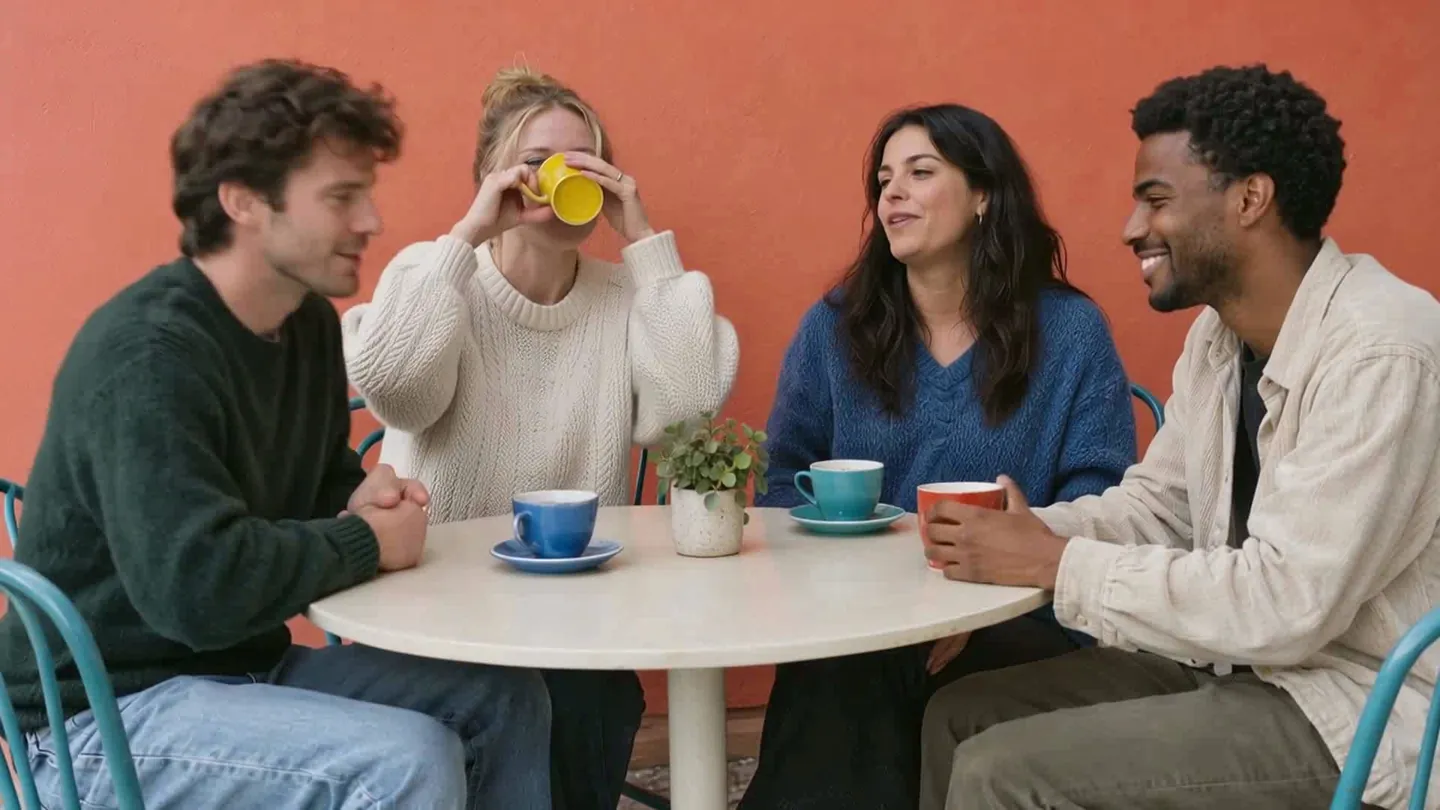
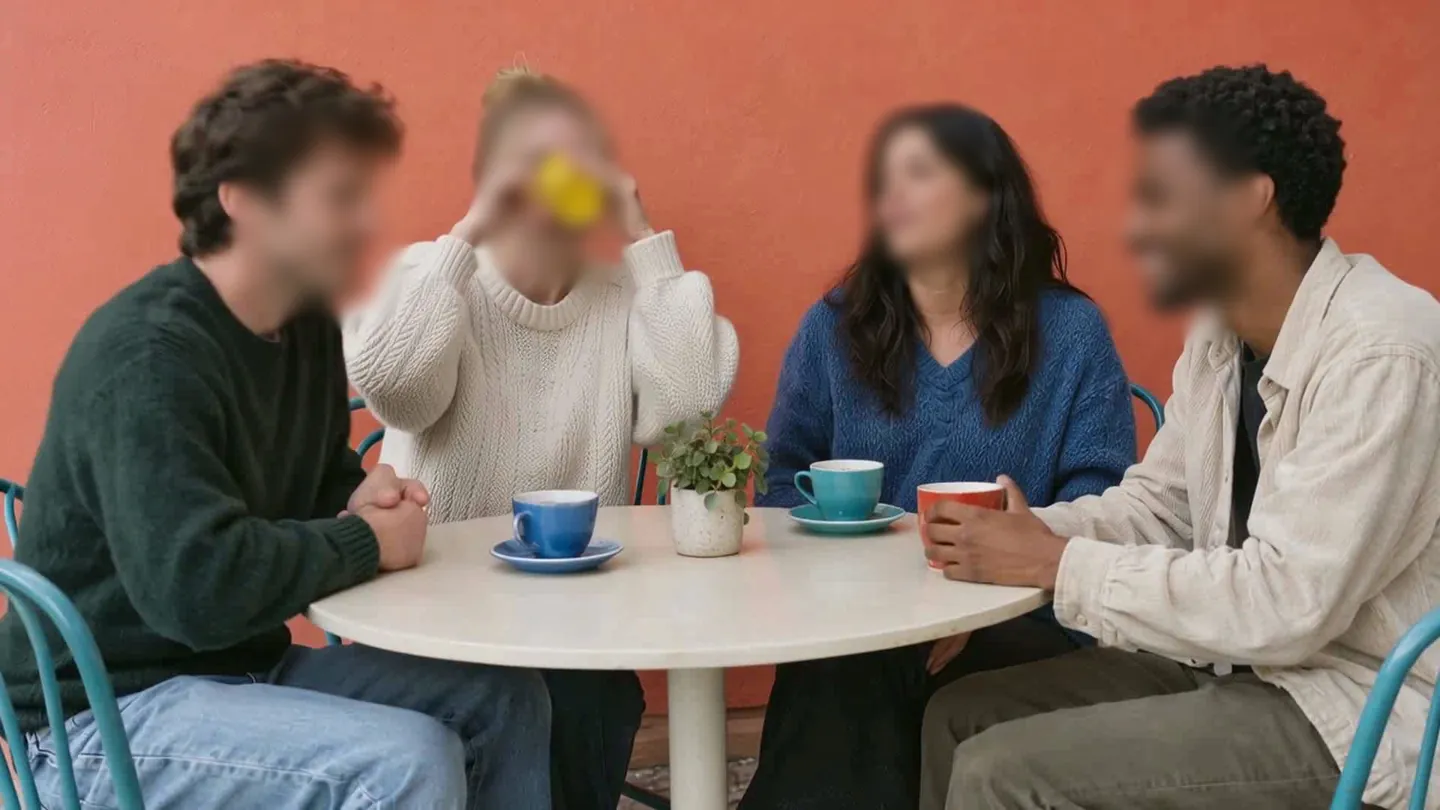
Faces in your video? Upload it and the AI finds them in every frame.
Nothing to install. Start right away.