Photo Mosaic – Free Online Mosaic Picture Creator
Maya Chen — Tech Writer & Privacy Advocate Part of: Blur Photo Complete Guide: Methods, Tools & Best Practices (2026)Read the complete guide →
How to Make a Photo Mosaic Online (Free Step-by-Step Guide)
You just shot 200 family photos at the park and now need every bystander's face obscured before posting to Instagram. A photo mosaic effect transforms each face into a grid of tiny colored tiles — creating an artistic blur that protects privacy while keeping your composition intact. Unlike standard blur or pixelation, mosaic patterns offer irreversible censoring that meets GDPR requirements for published content. The catch? Manual mosaic application in Photoshop or GIMP takes 3 minutes per photo across 5 tedious steps — multiply that by 200 images and you're looking at 10 hours of repetitive clicking. Miss a single face in your mosaic grid and you've exposed someone's identity to thousands of viewers. What if you could apply mosaic effects to hundreds of photos in 30 seconds with zero manual selection?
Common Approaches to Photo Mosaic
You can create a photo mosaic effect using three main methods: dedicated mosaic generators, manual photo editing software, or AI-powered privacy tools. Each approach suits different goals — artistic collages, quick social media posts, or privacy protection.
Method 1: Online Mosaic Generators (Best for Artistic Collages)
Mosaic generators like EasyMoza and AndreaMosaic turn a single target image into a grid of smaller thumbnail images. You upload one main photo (a portrait, landscape, or logo) plus 50-500 tile images. The software analyzes color values and arranges tiles to recreate your target image when viewed from a distance.
Step 1: Visit EasyMoza (easymoza.com) and click "Create Mosaic." Upload your target image — choose a high-contrast photo (minimum 1000x1000px) because faces and landscapes work best due to distinct color zones.
Step 2: Upload 500-2000 tile images for web display or 5000+ for print projects. The software matches each tile's average color to the corresponding region in your target image. More tiles = sharper final mosaic.
Step 3: Adjust tile size (10x10 to 100x100 pixels) and grid layout. Smaller tiles create finer detail but require more source images. Preview the mosaic pattern before downloading.
Step 4: Download the final mosaic as JPG or PNG. For web use, export at 2000-3000px width. For print, export at 300 DPI with at least 6000px width.
Trade-off: This method creates artistic photo collages, not privacy protection. Tile images remain recognizable when zoomed in — faces in the original tiles stay visible. If you need to obscure faces for FERPA or HIPAA compliance, this approach fails because the underlying tile images contain identifiable data.
Method 2: Pixelation Tools in Photo Editors (Best for Quick Censoring)
Pixelation in Photoshop, GIMP, or Canva creates a mosaic effect by averaging pixel colors into larger blocks. This method works for censoring faces, license plates, or text in a single image.
Step 1: Open your image in GIMP (free download at gimp.org). Select the Rectangle Select Tool and draw a box around the face or region you want to obscure.
Step 2: Go to Filters → Blur → Pixelize. Set pixel block size to 15-30px for face obscuring. Larger blocks (50-100px) create stronger censoring but look more obvious.
Step 3: Click OK to apply the mosaic effect. The selected region now shows color-averaged blocks instead of fine details. Export as JPG or PNG.
Limitation: Pixelation is partially reversible using AI upscaling tools. Research shows neural networks can reconstruct faces from 16x16 pixel blocks with 60-70% accuracy. For GDPR or CCPA compliance, pixelation alone doesn't guarantee irreversibility — courts in Germany and France have ruled pixelated footage insufficient for full anonymization.
Method 3: Mobile Mosaic Apps (Best for Social Media)
PicsArt and Fotor offer one-tap mosaic filters for Instagram stories and TikTok posts. These apps apply grid patterns or tile effects to entire photos or selected regions.
Step 1: Install PicsArt (iOS/Android) and open your photo. Tap Effects → Artistic → Mosaic. The app applies a default tile pattern across the entire image.
Step 2: Use the Eraser tool to remove the mosaic effect from areas you want to keep sharp (background, clothing). Adjust tile size with the slider — 5-10 for subtle texture, 20-40 for strong face obscuring.
Step 3: Tap Apply and export. PicsArt adds a watermark on free accounts — upgrade to remove it or crop the watermark area before posting.
Trade-off: Mobile apps process images at reduced resolution (typically 1080-2048px max). If you need high-resolution output for print or batch processing of 100+ photos, desktop software handles larger files faster. Mobile workflows work for single-image social posts, not professional privacy redaction.
Method 4: AI Privacy Tools (Best for Batch Face Redaction)
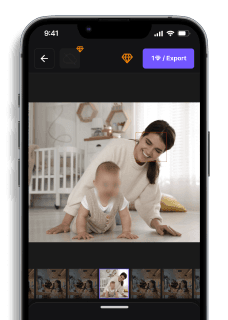
AI-powered tools like blur.me automatically detect faces and apply mosaic effects across hundreds of photos in one upload. Upload 100 event photos, and the AI detects every face in ~5 minutes total — no manual selection required.
Step 1: Visit blur.me and upload your image. The AI scans for faces using deep learning — detects multiple people even in crowded group shots.
Step 2: Blue bounding boxes appear around detected faces. Click any box to toggle detection on/off. Choose Mosaic as the blur type (alternatives: Gaussian blur, full pixelation).
Step 3: Adjust mosaic block size (8x8 to 32x32 pixels). Larger blocks create stronger anonymization. Download the processed image — blur.me applies irreversible mosaic rendering in the final output.
Advantage: Batch processing saves 15-20 minutes per photo compared to manual GIMP selection. The AI handles edge cases (profile views, partially obscured faces, glasses) that manual tools miss. Used by government agencies in 88 countries for CCTV de-identification — meets GDPR Article 25 requirements for privacy by design.
Why Use a Photo Mosaic?
A photo mosaic is more than just visual art—it's a story told through hundreds of moments. Here are popular reasons people use photo mosaics:Memory Collage for anniversaries, weddings, or birthdaysEvent Posters or graduation printsCreative Branding for social mediaArt Projects using personalized mosaic patternsIf you're a creator who prefers anonymity or wants to focus attention on visuals rather than faces, adding a blur PNG overlay or using the Censor PNG tool by BlurMe can help.
When your mosaic includes event photos with recognizable faces, you may need to anonymize attendees before publishing. Manual face-blurring across 200+ photos in Photoshop takes 30-45 minutes of repetitive work—and missed faces risk privacy violations.
Faces or plates to hide in your photo?
Upload and the AI blurs them automatically in seconds.
Best Free Photo Mosaic Creators (2025)
EasyMoza - Quick and easy classic photo mosaics with no sign-up; free medium-res downloads.Mosaically – Build detailed mosaics with interactive zoom; free to use, but HD downloads cost.Picture Mosaics – Highly customizable mosaics with advanced settings; watermark on free version.
FAQ
How many photos do you need for a photo mosaic?
You need at least 50-100 unique photos to create a recognizable mosaic, but 500-1,000 tile images produce the best results with richer color variation and detail. Professional mosaic generators like AndreaMosaic recommend 1,000+ photos for high-resolution output. Each tile typically appears 16×16 to 64×64 pixels in the final mosaic. More photos = better color matching and less tile repetition across your grid layout.
What is the difference between a photo mosaic and a photo collage?
A photo mosaic arranges hundreds of thumbnail images in a precise grid to recreate a larger base image when viewed from a distance — each tile is a complete photo. A photo collage combines 5-20 photos in a freeform layout with visible borders and varying sizes, focusing on individual image visibility rather than creating an optical illusion. Mosaic software like EasyMoza calculates color values to match tiles to the base image, while collage apps like Canva prioritize aesthetic arrangement.
Can I use the same photo multiple times as a tile in Photoshop?
Yes, Photoshop's Filter Gallery and mosaic effect tools don't restrict tile uniqueness — the same image can appear multiple times across your mosaic grid. However, repeating tiles create a less convincing effect compared to using diverse source photos. Professional mosaic creators like Mosaically and Pro Photo Mosaic Creator analyze your photo library and minimize repetition automatically. For privacy-focused mosaics (face obscuring), tile uniqueness doesn't matter since the goal is censoring rather than artistic effect.
What resolution should my base image be for a photo mosaic?
Your base image should be at least 2000×2000 pixels for print-quality mosaics, with 3000×3000 pixels or higher recommended for large-format output. Each mosaic tile displays at 32×32 to 64×64 pixels typically, so a 3000px-wide base image creates a 47-94 tile grid horizontally. Higher resolution allows larger tile counts and finer detail. Instagram posts work fine at 1080×1080 pixels since mobile screens don't reveal individual tiles at smaller sizes.
How long does rendering take for a photo mosaic in Photoshop?
Photoshop's built-in mosaic filter (Filter > Pixelate > Mosaic) renders instantly — under 3 seconds for most images since it's a simple pixelation effect, not a true photo mosaic. Creating an actual tile-based mosaic with custom photos takes 15-45 minutes manually arranging images in a grid layout. Dedicated mosaic software like AndreaMosaic processes 1,000 tiles in 2-5 minutes automatically. For batch processing multiple mosaics, blur.me auto-detects and blurs faces in photos within ~3 seconds per image — faster than manual mosaic application for privacy protection workflows.
Bonus: Make a Mosaic with a Mobile Mosaic App
On the go? You can also create mosaics with a mosaic app for iOS or Android. But beware—many require downloads or restrict exports. BlurMe lets you create photo mosaics online, directly in your browser, no installation needed.
Faces or plates to hide in your photo?
Drop a photo or video in your browser and the AI auto-blurs faces, license plates, and personal info in seconds.
Upload free