Check When Credits Are Used and Estimate Costs
Updated Sep 9, 2026
Check before running a task
Check Available credits on the dashboard and the displayed estimate before starting paid work. Credits are not used only at export.
Credits used during editing
Completing a photo Magic Blur selection displays a cost of 1 credit. For video Magic Blur, set the tracking range and check the estimate before Start tracking. Adding selection points, completing a selection, tracking a video, and exporting are separate stages; read the cost notice at each stage.
Check export costs
Costs vary with file type and output settings. Paid photo exports use a 1-credit-per-image basis and PDFs use a 1-credit-per-page basis. Video cost depends on output resolution and duration, so do not assume every video always costs 1 credit per second. Check the estimate shown for the operation.
Separate Free from paid work
The current Free plan exports limited results without credits. Watermarks and a 10-second video limit apply. These limits are separate from credit calculations for paid plans and features.
Check usage and balance
Open Account settings from your profile menu and choose Credit usage history. Compare the operation with the usage history and dashboard balance. If credits are insufficient, consider a credit pack or plan change. Subscription credits are issued periodically; current plans advertise carryover of up to six months of unused credits.
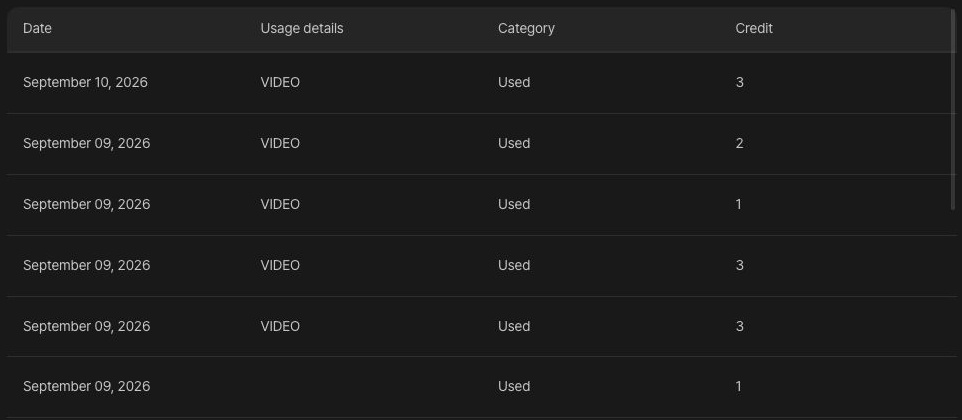
Downloading again versus processing again
Downloading an existing result differs from changing edits and processing or exporting again. Check costs again when you repeat processing. If you suspect a failed task used credits, check its time and usage entry before repeatedly retrying, then contact support.
Check current plans and limits