Change, Cancel, or Resume a Plan
Zaktualizowano 9 wrz 2026
What you will complete
Check subscription status and choose a plan change, cancellation of renewal, or withdrawal of a scheduled cancellation. Use the current subscription and remaining term displayed in Billing and plans.
1. Open Billing and plans
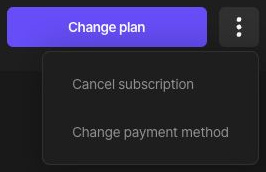
Go to your profile menu → Account settings → Billing and plans. Check the plan, next billing date, and credit status. If dates are old or the plan is unexpected, compare payment history and contact support. Open the … button beside Change plan to show the subscription-management menu.
2. Change the plan
Choose Change plan and select a plan and billing cycle. Read when the change takes effect, the charge now, future renewal amount, and currency before confirming. Do not assume every change uses the same timing or proration. Recheck Billing and plans afterward.
3. Cancel renewal
Choose Cancel subscription from the subscription menu and follow the cancellation-reason step to the final confirmation. Read the scheduled end date, remaining access, and credit-forfeiture notice. If you agree, select the checkbox and choose Confirm cancellation. Current pricing guidance says you retain the plan until the next billing date. Check that the scheduled cancellation is reflected.
4. Resume a scheduled cancellation
If the subscription has not ended and Resume subscription is available, choose it in Billing and plans. After resuming, check that the scheduled end is removed and a next billing date appears. If it has expired or no resume action is available, review the terms for a new subscription on the pricing page.
If you want to delete the account
Canceling renewal differs from deleting an account. The account-deletion dialog describes automatic subscription cancellation, loss of credits, and permanent deletion of stored files. Read the account-deletion guide before removing your data.