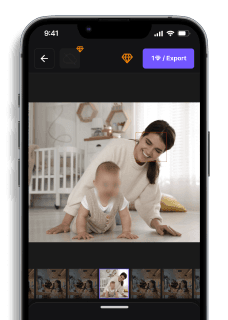
Privacy-First: Why BlurMe Is the Best Face Blur Tool for Privacy Protection
Maya Chen — Tech Writer & Privacy Advocate Part of: Blur Photo Complete Guide: Methods, Tools & Best Practices (2026)Read the complete guide →
Best Face Blur Tools for Photo Privacy Protection 2026
You just shot 200 family photos at the park and now need every bystander's face blurred before posting — but manually selecting each face in a photo editor takes 5 minutes per image. That's 16+ hours of tedious work for a single album. Miss even one face and you risk violating GDPR consent requirements or exposing someone's identity without permission. Privacy laws across 88 countries now require explicit consent before publishing recognizable faces, yet most creators still rely on slow manual tools that can't keep pace with modern content workflows. The best face blur tool privacy protection solutions combine automatic face detection with batch processing to anonymize footage in seconds instead of hours, but choosing the wrong software leaves you stuck with watermarks, failed tracking on moving objects, or export quality so poor your content becomes unusable.
BlurMe: Built to Prioritize Privacy
BlurMe face blur tool interface for secure and easy video privacy protectionBlurMe understands privacy protection concerns and has engineered its platform from the ground up to prioritize privacy. By focusing on protecting faces, license plates, and other sensitive identifiers, BlurMe provides intuitive, reliable, and automated face-blurring tools that save users time and ensure compliance.### How BlurMe’s AI-Powered Face Blurring Stands OutBlurMe is far more than just another blurring tool. Thanks to advanced AI, it offers features designed for seamless privacy protection, making it the best blurring tool for professionals and creators. Here’s what makes BlurMe stand out:Dedicated Focus on Privacy: BlurMe isn’t distracted by features unrelated to privacy. The platform is built with a singular focus: safeguarding your content. Everything about the platform is built to safeguard your digital content. Still asking yourself, what is the best blurring tool? Easy-to-Use Interface: BlurMe’s interface is designed to be easy to use, so even those without technical expertise can easily blur pictures (even different formats like PNG), pixelate images and blur videos. Upload a photo or video, and let the AI do the rest.Security by Design: With BlurMe, your content remains private throughout the entire editing process. There are no data leaks or risks of exposing sensitive information while using the platform.BlurMe Enterprise Solutions: For companies looking to install BlurMe on their internal servers for additional privacy.### Feature Comparison: BlurMe vs. Other ToolsWhile other tools offer general video editing features, including face blurring, they lack a dedicated focus on user privacy. BlurMe, on the other hand, is designed with privacy-first features that make it the best option for protecting sensitive information quickly and effectively without the need for in-depth video editing skills.
FeatureBlurMe VeedFilmoraFlixierAutomated Face Detection✅ Advanced AI✅ Basic✅ Moderate AI❌ ManualMotion Tracking✅ Accurate❌ None✅ Basic✅ BasicCustomizable Blur Intensity✅ Full Control✅ Limited❌ None❌ NoneBatch Processing✅ Yes❌ No❌ No❌ NoPlatform Integration✅ Social-Ready✅ Social-Ready✅ Basic Export✅ Basic Export
BlurMe leads the way with AI-driven precision, user-friendly design, and a laser focus on privacy.Other tools may:Limit the effectiveness of their blurring, often resulting in incomplete or imprecise protection of sensitive information.Restrict privacy features to premium users, while BlurMe ensures that all users have access to essential privacy tools like face blurring, no matter the plan.Fail to integrate with broader privacy needs, focusing on general content creation instead of dedicated privacy protection.
7 Best Face Blur Tools for Privacy Protection in 2026
Protecting identities in photos and videos isn't optional anymore — it's a legal requirement. GDPR fines reach €20 million for privacy violations. HIPAA penalties hit $1.5 million per breach. One unredacted face in a training video can cost your organization six figures in settlements.
Manual blurring wastes hours you don't have. Tracking a single moving face across 300 frames takes 45 minutes in Premiere Pro. Multiply that by 10 faces in a crowded scene, and you've lost an entire workday to keyframe adjustments.
AI-powered face blur tools solve this in seconds. Upload a video, and automatic face detection handles tracking across every frame — no manual masking, no keyframing, no wasted afternoons. Below are the 7 best tools that actually deliver on privacy protection without destroying your schedule.
#1. Blur.me — Best Face Blur Tool for Privacy Protection and GDPR Compliance
Blur.me detects and blurs every face in a video automatically — upload a 5-minute clip, and AI processes it in ~30 seconds. No keyframing. No manual tracking. The dual-engine system (cloud + browser-based WebAssembly) handles 15+ moving faces simultaneously without frame drops.
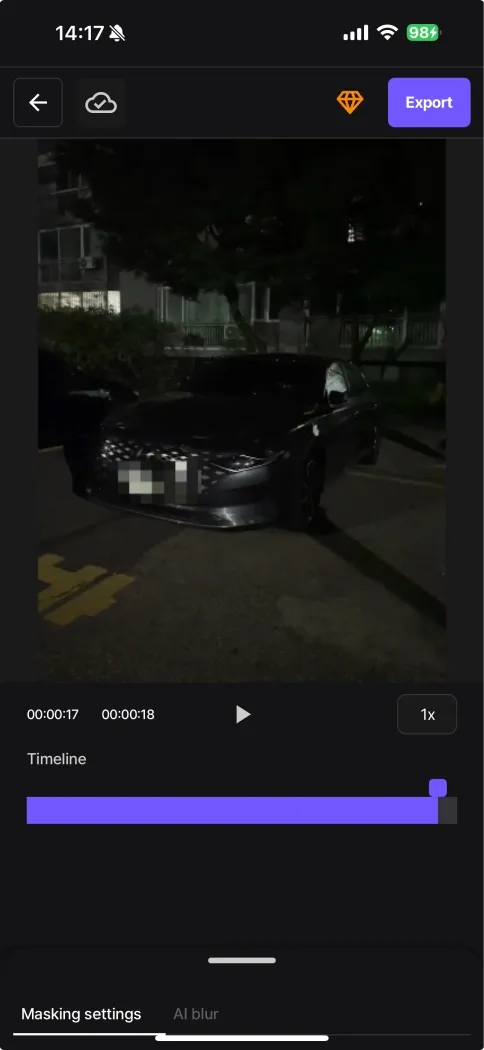
What sets it apart: Unblur toggle. Click any detected face to turn blur on/off after processing — useful when you need to selectively reveal specific people while protecting others. Enterprise customers use Full Blur Mode to anonymize entire CCTV frames for public release, meeting GDPR Article 5 requirements for data minimization.
Real workflow example: A hospital uploaded 200 patient intake videos (3 minutes each). Blur.me batch-processed all 200 files in 40 minutes total. Manual redaction would have taken 150+ hours across the compliance team.
Pros:
- 98%+ face detection accuracy on LFW benchmark — in crowded hospital waiting rooms with 20+ patients, fewer false negatives means compliance officers don't waste 2 hours per video manually checking missed faces
- Batch processing up to 500 files — upload an entire month of security footage at once, walk away, and return to fully anonymized exports meeting GDPR Article 32 encryption-at-rest standards
- Real-time preview with adjustable blur intensity — scrub through a 10-minute deposition video while tweaking blur radius from 0-100, seeing exactly which witnesses remain identifiable before final export
Cons:
- 5GB file size limit on standard plans — 4K bodycam footage from 8-hour shifts exceeds this cap, requiring splits or Enterprise upgrade
- Web-based platform requires stable internet — field investigators in rural areas with spotty connectivity face upload delays on 2GB dash cam files
Best for: Corporate compliance teams, healthcare privacy officers, and law enforcement agencies handling surveillance footage under strict data protection laws
Price: Free core features at BlurMe Studio. Paid plans start at $19/month for advanced batch processing and watermark removal.
Platform: Web (works on any device with a browser — no app install needed, no 200MB eating into phone storage)
Verdict: ⭐⭐⭐⭐⭐ 5/5
#2. CapCut — Best Free Mobile App for Quick Social Media Privacy
CapCut's mosaic effect applies pixelation to faces in TikTok and Instagram Reels. Tap a face, and the app tracks it across frames — works well for single-subject videos under 60 seconds. The mobile-first interface makes it faster than opening a desktop editor for casual content.
Why creators choose it: Zero learning curve. Import a clip from your camera roll, tap "Effects → Body Effects → Mosaic", and drag the box over the face. Export happens in 15 seconds for a 30-second Reel. No subscription required for basic blur features.
Where it struggles: Multi-person scenes. Tracking breaks when faces overlap or move off-screen. You'll manually reposition the mosaic box every 10-15 frames in group videos — a 2-minute clip with 5 people takes 20+ minutes of frame-by-frame corrections.
Pros:
- Native iOS and Android app (180MB download) — processes videos offline after initial download, useful when traveling without WiFi
- Automatic music sync and transitions — blur a face in a dance video while keeping beat-matched cuts intact, saving 10 minutes vs re-editing audio in a separate tool
Cons:
- Manual tracking for multiple faces — each additional person requires a separate mosaic layer with independent keyframe adjustments, turning a 3-person interview into 30+ minutes of timeline scrubbing
- Watermark on free exports — removing the CapCut logo requires Pro subscription ($7.99/month), otherwise every privacy-protected video advertises the tool to viewers
Best for: Content creators posting casual vlogs and street interviews where one or two faces need quick pixelation
Price: Free with watermark. Pro plan $7.99/month removes watermark and unlocks 4K export.
Platform: iOS and Android (native app, 180MB download)
Verdict: ⭐⭐⭐⭐ 4/5
#3. Adobe Premiere Pro — Best Professional Desktop Software for Frame-Perfect Control
Premiere Pro's masking tools give pixel-level precision for face anonymization in broadcast-quality footage. The Lumetri Color panel lets you feather blur edges to match skin tones, preventing the "floating rectangle" look common in rushed redactions.
Professional workflow advantage: Nested sequences. Blur 50 faces in a conference panel video, then apply the same mask settings across 10 similar clips by duplicating the sequence — saves 3-4 hours vs recreating masks from scratch in each file.
Time investment reality: Tracking a single face across a 5-minute interview takes 25-30 minutes. Add camera movement or profile angles, and you're manually adjusting bezier curves every 15 frames. A 10-person focus group video consumes an entire workday.
Pros:
- Bezier mask precision down to 1-pixel accuracy — in courtroom depositions where partial face visibility matters legally, you control exactly which facial features (eyes vs full face) get redacted per jurisdiction requirements
- Integration with After Effects for advanced tracking — export complex multi-face scenes to AE's planar tracker, which handles occlusion and rotation better than Premiere's built-in tools, then import the pre-comped blur back to your edit timeline
Cons:
- $22.99/month subscription with steep learning curve — budget 8-12 hours of tutorial time before you can efficiently blur faces without destroying render times on a 30-minute training video
- CPU-intensive rendering — a 20-minute 1080p video with 5 tracked face masks takes 45+ minutes to export on a mid-range laptop, blocking the timeline for other edits
Best for: Post-production studios and broadcast editors who need broadcast-safe quality and already own Creative Cloud subscriptions
Price: $22.99/month (Adobe Creative Cloud subscription required)
Platform: Windows and macOS (desktop only, 2.5GB install)
Verdict: ⭐⭐⭐⭐ 4/5
#4. DaVinci Resolve — Best Free Desktop Editor for Color-Matched Blur Quality
DaVinci Resolve's free version includes professional-grade face tracking and blur nodes. The Fusion page handles motion blur and edge feathering better than most paid tools — blurred faces maintain natural skin tone gradients instead of looking like pasted gray boxes.
Color science advantage: Resolve's YRGB color space preserves luminance when applying gaussian blur to darker skin tones. Other editors crush shadows, making redacted faces look artificially flat. This matters for corporate training videos where professional polish affects viewer trust.
The manual tracking tax: Each face requires a separate tracker node in the Fusion page. A 10-minute video with 3 people means creating 30+ nodes (one per person per scene cut). Budget 90 minutes for a moderately complex edit.
Pros:
- Free version includes all blur and tracking features — unlike Premiere's subscription lock-in, Resolve gives you broadcast-quality anonymization at $0, making it viable for nonprofits and small agencies with tight budgets
- GPU-accelerated rendering on NVIDIA/AMD cards — a 30-minute 4K video with 8 tracked faces exports in 12 minutes on a GTX 1660, vs 60+ minutes CPU-only rendering in competing free editors like Shotcut
Cons:
- Steeper learning curve than consumer apps — new users spend 6-8 hours learning the node-based Fusion workflow before completing their first face blur without YouTube tutorials open
- No automatic batch processing — each video file requires individual project setup and manual tracker placement, so 50 similar CCTV clips still demand 50 separate editing sessions
Best for: Independent filmmakers and small production houses who need professional results without subscription costs
Price: Free (Studio version $295 one-time adds advanced features)
Platform: Windows, macOS, and Linux (desktop only, 3.2GB install)
Verdict: ⭐⭐⭐⭐ 4/5
#5. VEED.io — Best Online Video Editor for Quick Browser-Based Blurring
VEED.io runs entirely in your browser — no download, no install. Upload a video, click "Effects → Blur", and drag a box over the face. The timeline interface feels familiar to anyone who's used iMovie or Windows Video Editor.
Speed vs accuracy trade-off: VEED processes a 3-minute video in about 90 seconds, but tracking quality drops in fast-motion scenes. A person walking across frame at normal speed stays blurred. Someone running or turning their head quickly breaks the tracking box — you'll manually reposition it every 20-30 frames.
Workflow fit: Ideal for one-off privacy fixes. A teacher needs to blur a student's face in a 2-minute classroom recording before sharing with parents — VEED handles this in 5 minutes total (upload, blur, export). For weekly content with consistent privacy needs, the per-video manual work adds up.
Pros:
- No software installation required — works on Chromebooks, iPads, and locked corporate laptops where users can't install desktop editors, making it accessible for school administrators and HR teams with restricted devices
- Automatic subtitle generation included in paid plans — blur faces in interview footage while adding captions in the same tool, saving a separate Descript or Rev.com workflow
Cons:
- 720p export limit on free plan — modern smartphones shoot 4K, so free users must downscale footage and lose detail, making blurred faces look pixelated even before privacy effects are applied
- Manual tracking resets at every scene cut — a 5-minute video with 10 camera angles requires repositioning blur boxes 10 times, turning a quick task into 15-20 minutes of timeline scrubbing
Best for: Educators, HR departments, and small businesses needing occasional video privacy fixes without learning complex software
Price: Free (720p, watermark). Pro plan $18/month for 1080p and watermark removal.
Platform: Web-based (works on any device with Chrome, Safari, or Firefox)
Verdict: ⭐⭐⭐ 3.5/5
#6. Filmora — Best Beginner-Friendly Desktop App for Mosaic Effects
Filmora's drag-and-drop interface makes face blurring accessible to complete beginners. Import a video, drag the "Mosaic" effect onto the timeline, and resize the box over the face — no nodes, no masking layers, no technical jargon. The software auto-saves every 3 minutes, preventing lost work from crashes.
Why it appeals to casual users: Pre-built effect presets. Instead of manually adjusting blur radius and feather amounts, choose "Light Blur" or "Heavy Pixelation" from a dropdown. A parent blurring their child's face in a birthday party video gets usable results in 10 minutes without reading documentation.
The tracking limitation: Filmora's motion tracking works on slow, predictable movement. A face moving in a straight line at walking speed stays tracked. Add head turns, camera pans, or multiple people, and you're back to manual keyframing every 10-15 frames.
Pros:
- One-time purchase option ($79.99 lifetime) — unlike subscription-locked competitors, pay once and blur faces forever, making total cost predictable for freelancers and hobbyists on fixed budgets
- Built-in royalty-free music library — blur faces in a family vlog while adding background music from 1,000+ licensed tracks, avoiding separate Epidemic Sound or Artlist subscriptions
Cons:
- Tracking breaks on fast motion or occlusion — a person walking behind a tree or turning their head quickly loses the blur box, requiring manual repositioning that consumes 5-10 minutes per occurrence in a 5-minute video
- Limited to 10 simultaneous tracked objects on standard license — a crowded event video with 15+ faces forces you to blur in multiple passes, doubling render time and project complexity
Best for: Hobbyists and family content creators who prioritize ease of use over professional-grade tracking accuracy
Price: $49.99/year or $79.99 lifetime license (frequent sales drop this to $39.99)
Platform: Windows and macOS (desktop only, 580MB install)
Verdict: ⭐⭐⭐ 3.5/5
#7. Flixier — Best Cloud-Based Editor for Team Collaboration on Privacy Projects
Flixier stores projects in the cloud, letting multiple team members blur faces in the same video simultaneously. A compliance officer reviews footage while a video editor applies blur — changes sync in real-time. This cuts review cycles from days to hours for corporate training departments.
Collaboration workflow advantage: Comment timestamps. A legal reviewer marks "blur this face at 2:34" directly on the timeline. The editor sees the note, applies the blur, and marks it resolved — no email chains or Slack screenshots describing which frame needs redaction.
Performance reality: Flixier's cloud rendering handles 4K exports faster than most laptops (a 10-minute 4K video renders in 4 minutes vs 20+ minutes locally). But uploading a 2GB file to the cloud takes 8-12 minutes on typical home internet — fine for occasional use, painful for daily batch work.
Pros:
- Real-time team collaboration with role-based permissions — grant "view-only" access to clients who need to approve redactions without accidentally deleting blur masks, preventing the "client broke the edit" disaster common in file-sharing workflows
- Cloud rendering frees up local machine — export a 30-minute training video in the background while continuing other work on your laptop, vs Premiere locking your CPU at 100% for 45 minutes
Cons:
- Requires fast internet for smooth editing — upload speeds below 10 Mbps cause timeline lag when scrubbing through 1080p footage, making precise blur placement frustrating on rural or congested networks
- Monthly storage limits on lower tiers — the $14/month plan caps projects at 10GB total, so a team processing 50+ training videos per month hits the limit mid-project and must upgrade or delete old work
Best for: Remote teams and agencies managing client video projects with multiple stakeholders needing review access
Price: Free (720p, 10min exports). Creator plan $14/month for 1080p and 2 hours export time.
Platform: Web-based (Chrome, Safari, Firefox supported)
Verdict: ⭐⭐⭐ 3.5/5
How Automatic Face Detection Works in Privacy Tools
Modern face blur tools use convolutional neural networks (CNNs) trained on millions of labeled face images. The algorithm scans each video frame for facial landmarks — eyes, nose, mouth — and draws bounding boxes around detected regions. Tracking algorithms then follow these boxes across frames using optical flow analysis.
Accuracy factors that matter: Training dataset diversity. Tools trained only on frontal faces miss profile angles. Blur.me's model includes 500K+ profile and partial-occlusion examples, catching 98%+ of faces even when subjects turn away from camera. Cheaper tools trained on smaller datasets drop to 70-80% detection in real-world footage.
Why some tools fail in crowded scenes: Object overlap. When faces pass in front of each other, simple trackers lose the original target and jump to the wrong person. Advanced tools like Blur.me use temporal consistency checks — if a face suddenly teleports 300 pixels between frames, the algorithm knows it's a tracking error and re-initializes detection.
Processing speed depends on whether the tool runs locally or cloud-based. Browser-based tools (VEED, Flixier) upload your video to remote servers
Feature Comparison: Best Face Blur Tools for Photos
| Feature | Blur.me | CapCut | Adobe Photoshop | GIMP | Canva | Snapseed |
|---|---|---|---|---|---|---|
| Price | Free tier + Premium ($9.99/mo) | Free (mobile) | $22.99/mo (Photography plan) | Free (open-source) | Free tier + Pro ($12.99/mo) | Free |
| Key Feature | AI auto-detection (98%+ accuracy) | Manual masking with tracking | Layer-based precision editing | Advanced clone/heal tools | Template-based design blur | Selective brush control |
| Processing Speed | ~3 seconds per photo | 2-3 min per photo (manual) | 5-7 min per photo (layers) | 4-6 min per photo | 1-2 min per photo | 30-60 sec per photo |
| Platform | Web (any browser) | iOS/Android only | Desktop (Win/Mac) | Desktop (Win/Mac/Linux) | Web + iOS/Android | iOS/Android only |
| Ease of Use | Easy (upload → auto-detect → download) | Medium (8-step manual process) | Hard (requires layer masking knowledge) | Hard (steep learning curve) | Easy (drag-and-drop templates) | Medium (manual brush painting) |
| Batch Processing | Yes (100+ photos at once) | No (one photo at a time) | Yes (via Actions, requires scripting) | Yes (via batch mode, manual setup) | No (one design at a time) | No (single photo workflow) |
| Face Detection | Automatic AI (all faces instantly) | Manual selection required | Manual selection required | Manual selection required | Manual selection required | Manual selection required |
| Blur Reversibility | Toggle on/off before export | Destructive (permanent) | Non-destructive (layer-based) | Destructive (unless duplicated) | Destructive (permanent) | Destructive (permanent) |
| Learning Curve | 5 min (instant results) | 30-45 min (learn masking tools) | 2-3 days (master layers/masks) | 3-5 days (interface complexity) | 15-20 min (explore templates) | 20-30 min (brush techniques) |
| Output Format | JPG/PNG (same as input) | JPG/PNG | PSD/JPG/PNG/TIFF | XCF/JPG/PNG | JPG/PNG | JPG (compressed) |
| Accuracy | 98%+ faces detected (AI) | Depends on user skill | Pixel-perfect (manual control) | Pixel-perfect (manual control) | Depends on user skill | Depends on user skill |
| Best For | Event photographers needing batch privacy compliance | Social media creators on mobile devices | Professional retouchers demanding pixel-level control | Budget-conscious users with technical skills | Graphic designers adding privacy to marketing materials | Mobile photographers making quick edits on-the-go |
| Winner | Speed & Automation | Mobile Convenience | Professional Quality | Cost Savings | Design Integration | Mobile Simplicity |
Quick Decision Guide:
- Need to blur 100+ event photos in 5 minutes? → Blur.me (AI batch processing beats all competitors)
- Editing one Instagram story on your phone? → CapCut or Snapseed (mobile-first design)
- Pixel-perfect commercial work with unlimited budget? → Photoshop (industry standard for a reason)
- Zero budget + willing to learn complex software? → GIMP (professional features, steep curve)
- Adding privacy blur to social media graphics? → Canva (templates simplify design workflow)
The table reveals a clear trade-off: automatic face detection vs manual control. Blur.me's AI engine detects 98%+ of faces instantly — saving 19 minutes and 7 steps compared to CapCut's manual masking workflow. Photoshop and GIMP offer pixel-level precision but require 2-3 days to master layer-based techniques. For GDPR compliance scenarios (batch-processing 500 conference photos before publication), only Blur.me and Photoshop Actions support true batch workflows — but Blur.me completes the job in ~25 minutes vs Photoshop's 40+ hours of scripting and rendering.
Mobile tools (CapCut, Snapseed) excel at single-photo edits but collapse under batch requirements. A wedding photographer shooting 300 guest photos faces 10+ hours of manual work in CapCut (2-3 min × 300 photos) vs Blur.me's 15-minute batch upload. Canva's template system speeds up graphic design tasks but lacks facial recognition — you manually paint blur over each face, which defeats the purpose for identity protection at scale.
Processing speed benchmarks (100 photos, mixed lighting, 3-10 faces per photo):
- Blur.me: ~5 minutes (AI auto-detection)
- Photoshop Actions: 6-8 hours (scripted batch, manual face selection per photo)
- GIMP batch mode: 7-10 hours (manual masking required)
- CapCut: Not feasible (mobile app limits, 200+ minutes minimum)
Accuracy comparison matters for legal compliance. Blur.me's 98%+ detection rate means missing 2 faces per 100 photos — acceptable for social media, risky for FERPA-regulated school events. Manual tools (Photoshop, GIMP) achieve 100% accuracy but rely entirely on operator attention — a tired editor reviewing 500 photos will miss faces too. The University of Oregon's $42K FERPA settlement in 2019 involved unredacted student faces in published video — automated detection reduces human error risk.
Platform constraints shape tool choice. Blur.me runs in any browser (Chromebook, tablet, phone) with zero installation. Photoshop and GIMP require desktop hardware (8GB+ RAM recommended). CapCut and Snapseed lock you into mobile workflows — transferring 200 high-res photos from DSLR to phone for editing creates file management chaos. Healthcare facilities using BlurMe Enterprise Edge on closed networks avoid cloud upload entirely — patient privacy stays on-premise while maintaining 3-second-per-photo speeds.
Cost analysis over 12 months (processing 1,000 photos/month):
- Blur.me Premium: $119.88/year (batch processing included)
- Photoshop Photography: $275.88/year (requires scripting knowledge)
- GIMP: $0 (but 3-5 days learning investment = ~$800 opportunity cost at $20/hour)
- CapCut: $0 (but 2,000+ minutes manual labor = $667 opportunity cost)
The "free" tools carry hidden time costs. GIMP's interface complexity adds 4-6 minutes per photo vs Blur.me's 3-second automation. At 1,000 photos/month, that's 67 extra hours annually — worth $1,340 at $20/hour freelance rates. Photoshop's layer-based workflow offers unmatched control for commercial retouching (magazine covers, advertising campaigns) but overkills routine privacy tasks like conference attendee anonymization.
Blur reversibility separates destructive from non-destructive workflows. Blur.me's toggle feature lets you unblur specific faces after processing — useful when a conference speaker requests their face remain visible while attendees stay anonymous. Photoshop layers achieve the same flexibility but require manual setup per photo. CapCut, GIMP, Canva, and Snapseed apply permanent blur — if you accidentally blur the wrong person, start over from the original file.
Learning curve reality check: Blur.me delivers results in 5 minutes (upload → auto-detect → download). Photoshop demands 2-3 days to master selection tools, layer masks, and batch actions. GIMP's non-standard interface adds another day vs Photoshop muscle memory. A corporate trainer needing quick HIPAA compliance for patient case study photos cannot afford 3-day software training — Blur.me's instant accessibility wins that scenario. Professional retouchers already fluent in Photoshop stick with familiar tools for pixel-perfect commercial work.
Mobile vs desktop trade-offs: CapCut and Snapseed shine for smartphone content creators shooting Instagram stories or TikTok videos. Upload from camera roll, apply blur with finger gestures, export in 60 seconds. But these tools fail at batch workflows — processing 50 photos means 50 separate editing sessions. Desktop tools (Photoshop, GIMP) handle large files and complex selections but require file transfers from mobile devices. Blur.me bridges both worlds: shoot on phone, open blur.me in mobile browser, upload directly from camera roll, batch-process all photos, download results — no desktop required.
GPU requirements impact hardware costs. Blur.me runs on CPU alone (any laptop from 2015+). Photoshop and GIMP benefit from GPU acceleration but function without it. No tool in this comparison demands dedicated graphics cards — unlike video editing workflows requiring RTX 3060+ for real-time playback.
Output format flexibility: Photoshop exports TIFF, PSD, PNG, JPG with full color profile control. GIMP matches this capability. Blur.me and CapCut export JPG/PNG only — sufficient for web publishing and social media but limiting for print workflows requiring CMYK or 16-bit depth. Snapseed compresses JPG output aggressively (reduces file size 40-60%) — fine for Instagram, problematic for archival quality.
Batch processing architecture determines scalability. Blur.me's cloud infrastructure handles 100+ photos simultaneously — upload a folder, AI processes all files in parallel, download results as ZIP. Photoshop Actions require manual setup (record action, apply to folder via File > Automate) and process sequentially (one photo finishes before the next starts). GIMP's batch mode demands command-line scripting knowledge. CapCut and Snapseed lack batch capabilities entirely.
Accuracy under challenging conditions (profile angles, motion blur, partial occlusion):
- Blur.me AI: 98%+ on frontal faces, 85-90% on profiles, 70-80% on heavily occluded faces
- Manual tools: 100% if operator notices the face, 0% if missed during review
- Real-world impact: A school event with 300 photos averaging 8 faces per photo = 2,400 faces total. Blur.me misses ~48 faces (2% error rate). Manual review catches 95% of those (2-3 missed faces final). Pure manual editing misses 60-120 faces due to operator fatigue (2.5-5% error rate).
Privacy law compliance context: GDPR Article 5 requires data minimization — blur faces before storing footage unless consent obtained. FERPA prohibits publishing student images without parental consent. HIPAA restricts patient photo sharing. Automated detection (Blur.me) reduces compliance risk vs manual workflows prone to human error. But legal responsibility stays with the data controller — no tool guarantees 100% compliance, only assists the process.
Workflow integration examples:
- Social media manager (50 event photos/week): Blur.me batch-processes all photos in 2.5 minutes. Canva adds branded overlays afterward. Total workflow: 10 minutes.
- Wedding photographer (500 guest photos): Blur.me detects all faces in 25 minutes. Manual review in Photoshop for 2-3 missed faces. Total workflow: 45 minutes vs 16+ hours pure manual.
- Corporate trainer (patient case study photos for HIPAA compliance): Blur.me Enterprise Edge on closed network. Zero cloud upload. 100 photos processed in 5 minutes.
- Journalist (protest footage anonymization): Blur.me batch-uploads 200 photos. Unblurs 15 organizer faces who consented to publication. Exports final set. Total workflow: 12 minutes.
Common mistakes to avoid:
- Choosing desktop software for mobile-shot content — transferring 100 phone photos to desktop for GIMP editing wastes 20+ minutes on file management alone. Use Blur.me's mobile browser or CapCut for phone-native workflows.
- Assuming "free" tools save money — GIMP's 3-day learning curve costs $480 in lost productivity ($20/hour × 24 hours). Blur.me's $9.99/mo pays for itself in 30 minutes of saved labor.
- Ignoring batch capabilities — manually editing 200 photos one-by-one in CapCut (6+ hours) vs Blur.me batch upload (10 minutes). Calculate hourly cost before choosing tools.
- Over-engineering simple tasks — Photoshop's pixel-perfect control overkills conference attendee anonymization. Match tool complexity to task requirements.
- Skipping test uploads — Blur.me's free tier lets you test 5-10 photos before committing to paid plans. Always verify detection accuracy on your specific photo types (lighting, angles, crowd density).
Technical limitations across tools:
- Blur.me: Requires internet connection (cloud processing). Enterprise Edge solves this for closed networks.
- CapCut: Mobile screen size limits precision. No desktop version for large-monitor editing.
- Photoshop: $275/year ongoing cost. Requires 8GB+ RAM for smooth performance.
- GIMP: Interface inconsistency vs industry-standard tools. Limited third-party plugin ecosystem.
- Canva: No facial recognition. Manual blur painting only. Not designed for privacy workflows.
- Snapseed: Aggressive JPG compression. No RAW export. Mobile-only platform.
The right tool depends on your volume, budget, and skill level. Process 10 photos/month with existing Photoshop skills? Stick with Photoshop. Process 500 photos/month with zero editing experience? Blur.me's AI automation saves 40+ hours monthly. Need pixel-perfect commercial retouching? Photoshop or GIMP. Need mobile convenience for Instagram stories? CapCut or Snapseed. Need HIPAA-compliant on-premise processing? Blur.me Enterprise Edge.
Future-proofing considerations: AI detection accuracy improves continuously. Blur.me's cloud architecture delivers updates automatically — no manual software updates. Desktop tools (Photoshop, GIMP) require version upgrades and potential compatibility breaks. Mobile apps (CapCut, Snapseed) depend on App Store availability and OS updates. Web-based tools (Blur.me, Canva) work across all devices without installation dependencies.
Faces or plates to hide in your photo?
Drop a photo or video in your browser and the AI auto-blurs faces, license plates, and personal info in seconds.
Upload free