CSV to XLSX
Put CSV data into an Excel workbook while keeping cell values as text.
Cells are saved as text, including leading zeros, long identifiers and values beginning with =. Formulas are not executed.
- Free
- No sign-up
- No file upload
Example result
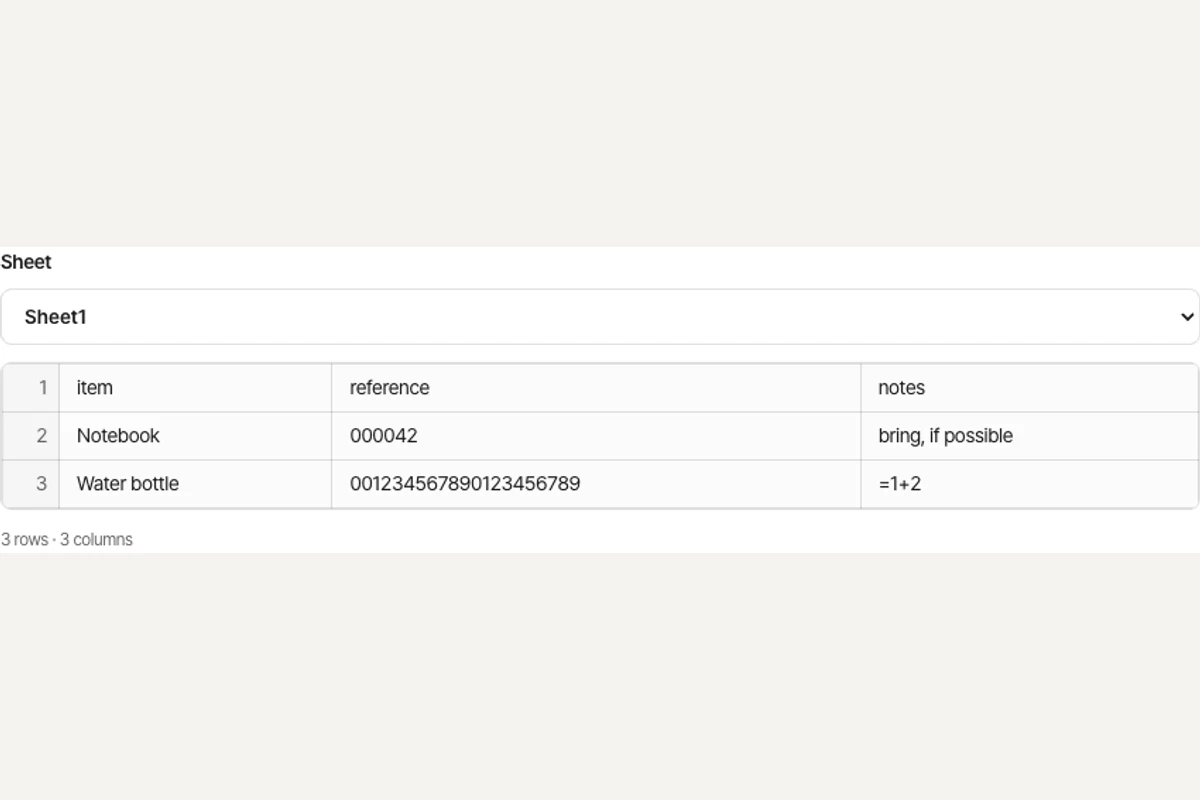 CSV
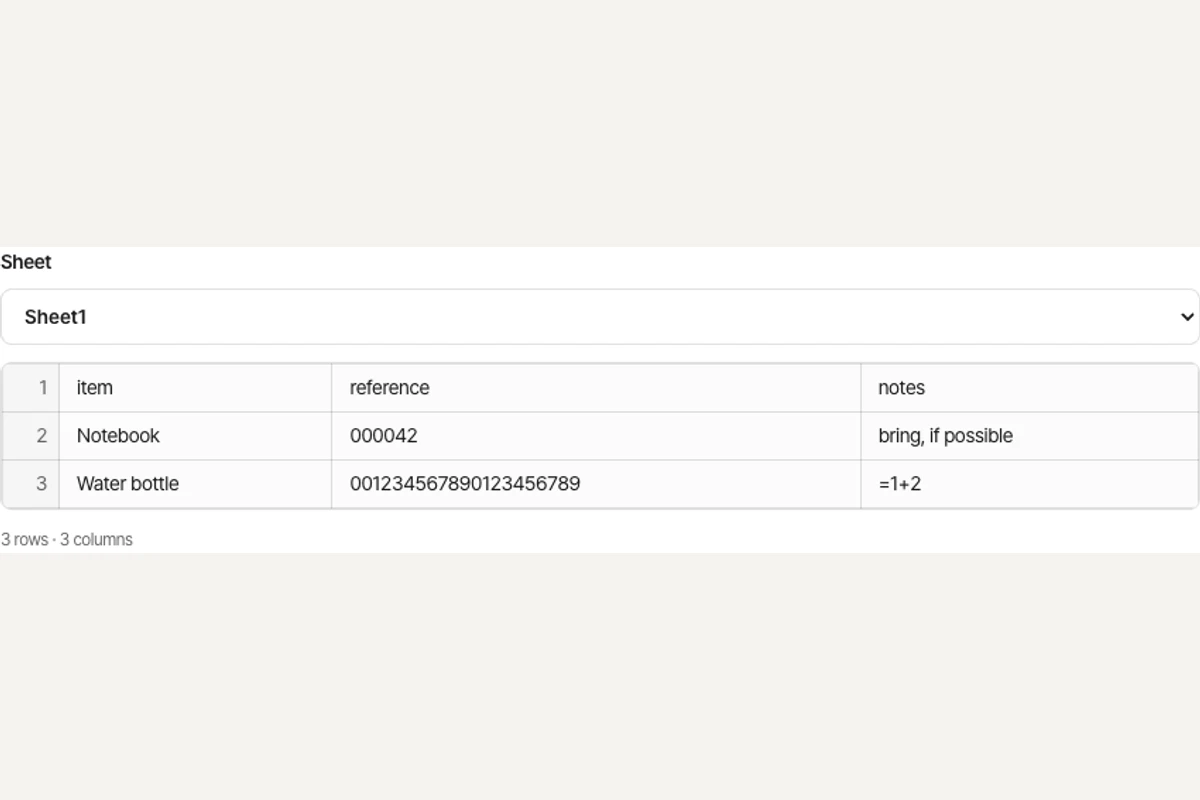 XLSX
Turning a CSV file into an Excel workbook
Choose a CSV file.
Check the delimiter and text encoding. Automatic detection and UTF-8 are the defaults.
Download the XLSX. Leading zeros and long numbers stay exactly as written.
Working with CSV to XLSX
The converter detects common delimiters or uses the one you select. Every cell is written as text, preserving leading zeros and long identifiers without evaluating formulas.
Text storage is intentional: numbers and dates will not automatically become numeric Excel cells. Choose the correct encoding if accented letters or CJK characters look wrong.
Frequently asked questions
Related tools
All toolsXLSX to CSV
Export the first visible worksheet or a CSV for every visible sheet.
Excel to PDF
Turn visible XLSX worksheets into PDF using their print settings.
XLSX viewer
Choose a worksheet and inspect its saved cell values.
Redact PDF
Edit in StudioFind and remove personal information in PDFs.
PPTX to text
Extract slide text in presentation order, separated by page breaks.
Extract images from PPTX
Save original pictures stored inside a PowerPoint presentation.